
Service form
To add a service, open setup, select Services, then New service. To change one, select the pencil next to it. Select Save service when you are done.
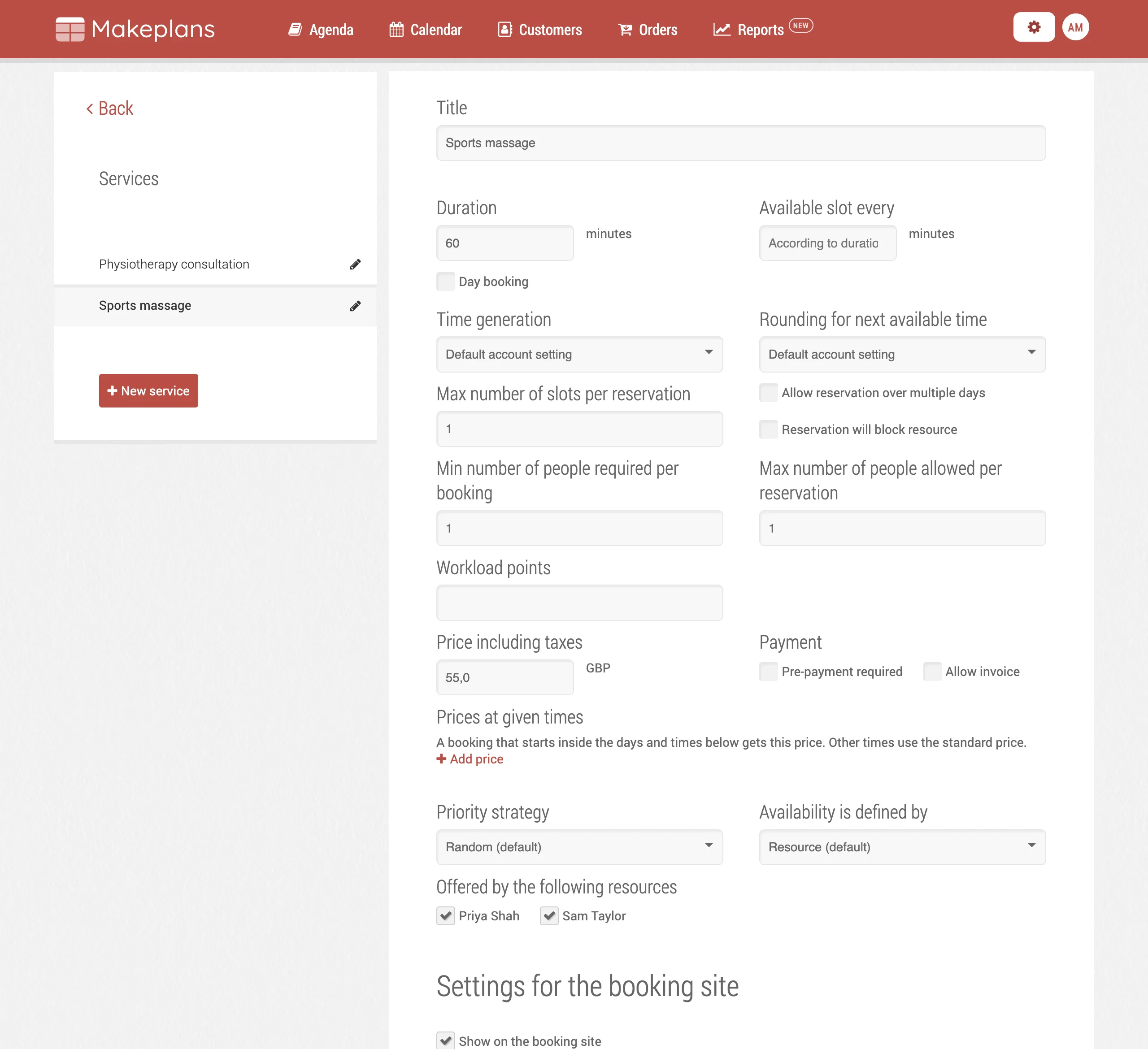
Most services only need a title, a duration and at least one resource. The rest of the form is for special cases.
Time
| Field | What it does |
|---|---|
| Title | The name customers see. |
| Duration | The length of one slot, in minutes. |
| Day booking | Book whole days instead of minutes. Useful for renting out rooms or equipment. The duration is then counted in days. |
| Available slot every | How often a slot starts. Empty means one slot per duration. See Slot frequency. |
| Time generation | Dynamic or Fixed. Leave on Default account setting unless this service needs something else. See How available times are generated. |
| Rounding for next available time | Moves start times to round times, such as the closest half hour. |
| Max number of slots per reservation | How many slots in a row a customer can book at once. With 60-minute slots and a maximum of 3, a customer can book up to 3 hours. |
| Allow reservation over multiple days | Lets one reservation run over more than one day. |
Capacity
| Field | What it does |
|---|---|
| Min number of people required per booking | The smallest group one reservation can be for. |
| Max number of people allowed per reservation | The largest group one reservation can be for. See Resource capacity. |
| Reservation will block resource | One reservation takes the whole resource for that time, whatever its capacity. |
| Workload points | Points this service uses of the resource’s daily maximum. See Daily workload points. |
Price and payment
| Field | What it does |
|---|---|
| Price including taxes | The price for one person and one slot. Leave empty to show no price. See Prices. |
| Pre-payment required | The customer must pay online to complete the reservation. Requires a payment provider. |
| Allow invoice | The customer can choose to be invoiced instead of paying online. |
| Prices at given times | Different prices for certain days and times. See Prices. |
Resources
| Field | What it does |
|---|---|
| Offered by the following resources | The resources that deliver this service. A service with no resource ticked is not shown on the booking site. |
| Priority strategy | How MakePlans picks a resource when several are free and the customer has not chosen one: Random, Order or Weight. |
| Availability is defined by | Resource uses the opening hours of the resource for this service, as for all its other services. This is the default. Provider gives this service its own opening hours per resource. See Different opening hours for one service. |
Settings for the booking site
| Field | What it does |
|---|---|
| Show on the booking site | Clear this to keep the service for use in the admin only. |
| Extra step for specifying count | Asks the customer how many people the reservation is for before they choose a time. |
| Extra step for selecting resource | Lets the customer choose a specific resource before they choose a time. |
| Must select specific resource | Removes the option to see all available resources at once. |
| Hide button for selecting resource | Customers cannot choose a resource. One of the available resources is picked at random. |
| Hide end-time | Shows only the start time of each slot. |
| Show available capacity | Shows how many places are left in each slot. |
| Display slots that are occupied | Shows taken slots as unavailable instead of hiding them. |
| Display slots in the past | Shows slots earlier today that have passed. |
| Enable waitlist | Turns the waitlist on for this service, overriding the account setting. See Waitlist. |
| Standalone service | The service is not listed with your other services on the booking site. Customers can only reach it through its direct link, which you find on the service page. |
| Overnight | For day booking only. |
| Calendar template | How dates and times are laid out for this service: Default, Month, List, Resources, Weekdays or All week. |
Booking rules
These override the rules set for the whole booking site under Booking site, then Rules. Leave them on Account default to follow those.
| Field | What it does |
|---|---|
| Max number of active bookings | How many upcoming reservations for this service one customer can have at a time. |
| Reservations has to be approved by an administrator | Each reservation waits for your approval before it is confirmed. |
| Allow cancellations by customer | Whether customers can cancel their own reservations. |
| Cancellation period | How late a customer can cancel, written in plain English, such as 24 hours before. Prepaid reservations cannot be cancelled by the customer. |
Texts
| Field | What it does |
|---|---|
| Description | Text shown to customers when they select the service. |
| Show custom reservation form text | Text shown above the reservation form for this service. |
| Show custom terms | Terms for this service that the customer must accept. |
| Show custom reservation form | A reservation form for this service only. See Custom fields. |
| Show custom confirmation text | Text on the confirmation page after the reservation is made. |
| Show content for outgoing communication | Email and SMS texts for this service only: confirmation, verification, awaiting confirmation, modification, cancellation, declined, reminder (SMS) and payment request. Empty fields use the texts set for the account. See Notifications. |
The service page
Select the name of a service in the list to see a summary of its settings. The page marks which values come from the account settings. At the bottom you find a direct link to the service on your booking site and a QR code for it.
Change the order of services
In the list of services, select Order to set the order they are shown in on the booking site.