
Message templates
A message template sends an email or SMS for each reservation, at a time you choose. Templates are sent in addition to the standard messages. Use them when the standard confirmation and reminder are not enough.
| Type | Sent | Use it for |
|---|---|---|
| Confirmation | When the reservation is confirmed | An SMS confirmation as well as the email, or the other way round |
| Reminder | Before the reservation starts | Email reminders, or several reminders |
| Follow up | After the reservation ends | Aftercare information, or asking for a rating |
Create a template
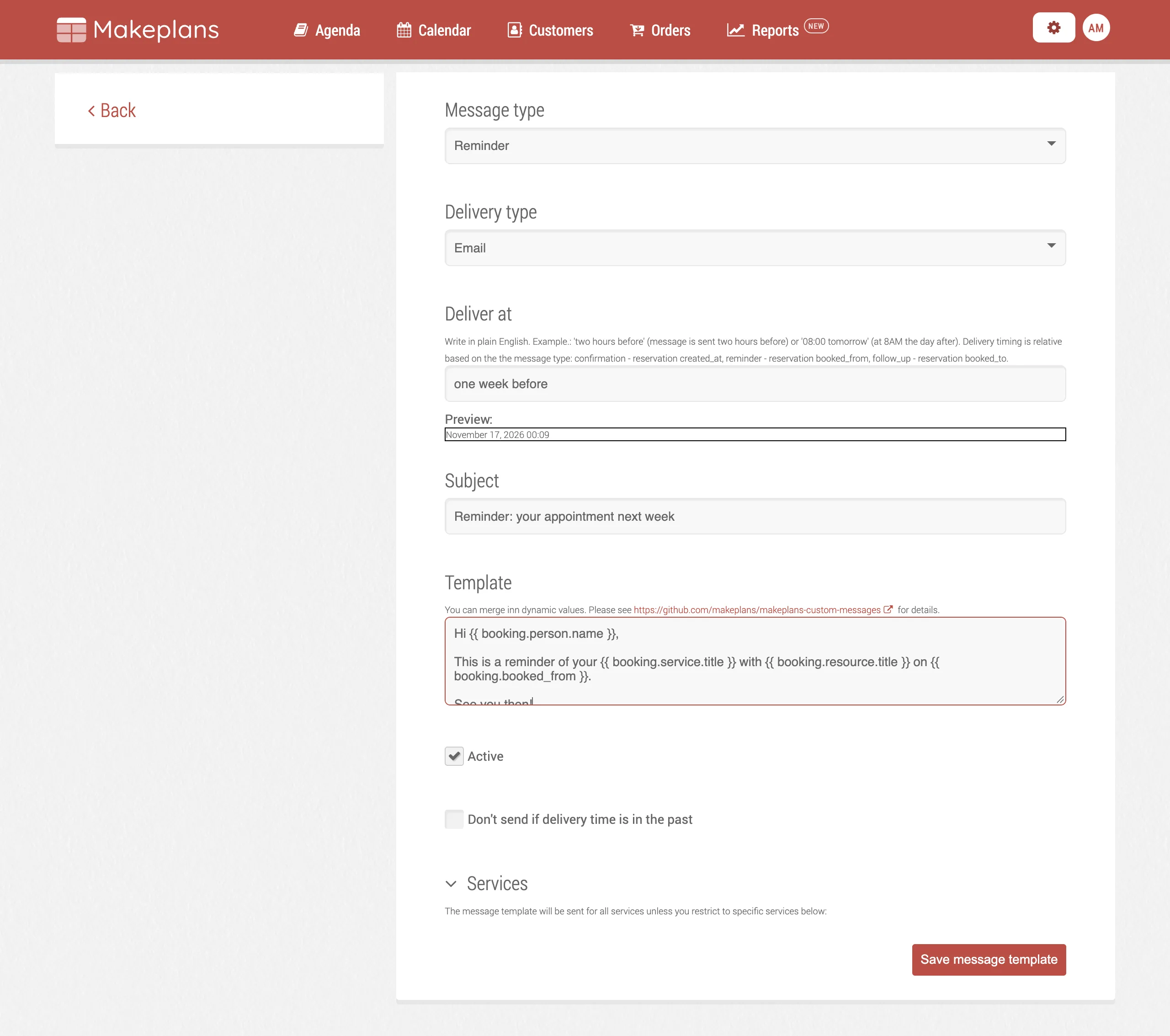
- Open setup and select Message templates, then New message template.
- Choose the Message type and the Delivery type, SMS or Email.
- In Deliver at, write when to send it in plain English, such as
one week beforeortwo hours before. A preview below the field shows how your text is understood. - For email, enter a Subject.
- Write the message in Template. Use merge fields for the customer’s name, the time and other details.
- Select Save message template.
What the time is counted from
| Type | Counted from |
|---|---|
| Confirmation | When the reservation was made |
| Reminder | The start of the reservation |
| Follow up | The end of the reservation |
So 2 days after on a follow-up means two days after the reservation ended, and 08:00 tomorrow means 8 AM the day after.
Other settings
| Setting | What it does |
|---|---|
| Active | Clear this to pause the template without deleting it. |
| Don’t send if delivery time is in the past | Skips the message when the time has already passed, for example a one-week reminder for a reservation made two days ahead. |
| Services | Limits the template to the services and event types you tick. Without a choice it is sent for all. |
Good to know
- A template only applies to reservations made after it was created.
- Reminders and follow-ups are sent in batches about every ten minutes, so the time is approximate.
- SMS templates use SMS credits.