
Manage the attendants of an event
Open an event from the Agenda or the Calendar. The agenda shows how many have signed up next to each event, for example 3/10.
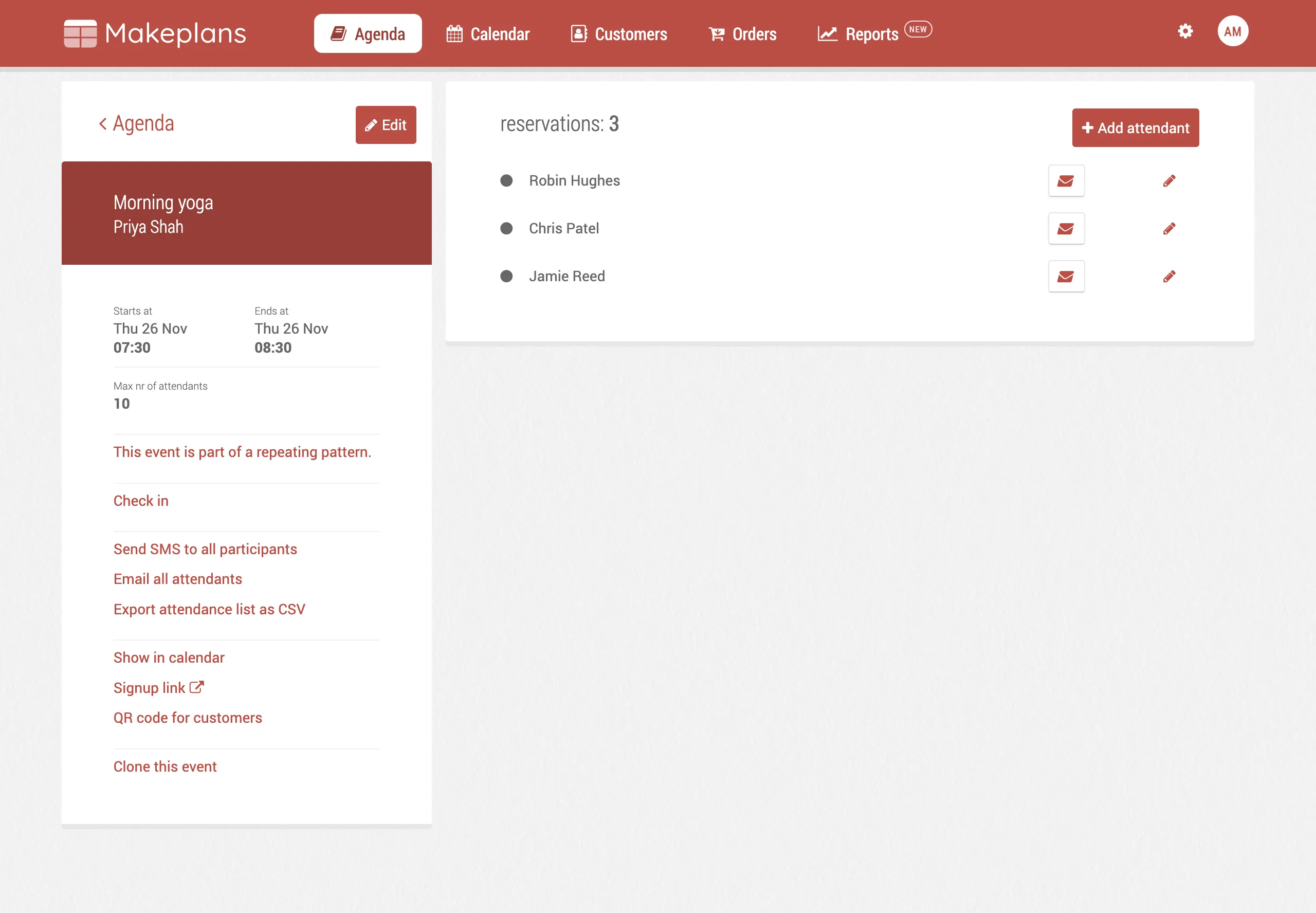
The right side lists the attendants. The left side shows the event and what you can do with it.
Add an attendant
- On the event page, select Add attendant.
- Search for an existing customer, or type a new name to create one.
- Choose whether to send a confirmation by Email or SMS.
- Select Save appointment.
Select the pencil next to an attendant to change or cancel their reservation.
What you can do from the event page
| Action | What it does |
|---|---|
| Edit | Change the time, resource, maximum number of attendants and other settings. |
| Check in | Mark attendants as they arrive. |
| Send SMS to all participants | Send one SMS to everyone signed up. Uses your SMS credits. |
| Email all attendants | Send one email to everyone signed up. |
| Export attendance list as CSV | Download the list of attendants. |
| Show in calendar | Open the calendar at this event. |
| Signup link | The direct link to this event on your booking site. |
| QR code for customers | A QR code for the signup link. |
| Clone this event | Open the new event form with the same settings. |