
Texts on the booking site
Open setup and select Booking site, then Texts. Empty fields use the standard text. Select Save when you are done.
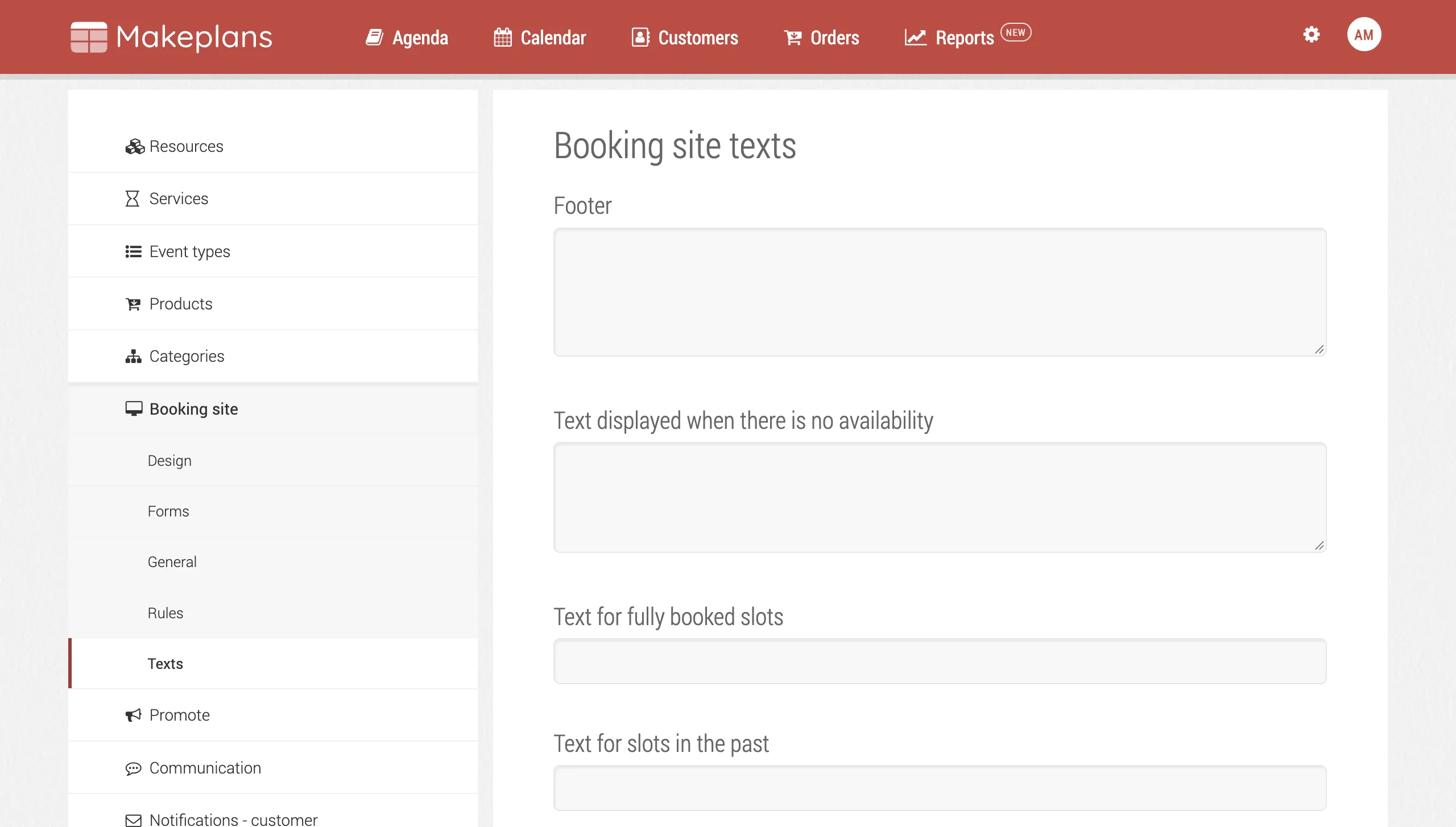
| Field | Where customers see it |
|---|---|
| Footer | At the bottom of every page. |
| Text displayed when there is no availability | When a day or service has no free times. |
| Text for fully booked slots | On slots that are full, when the service displays occupied slots. |
| Text for slots in the past | On slots that have passed, when the service displays them. |
| Text displayed when booking is waiting for confirmation | After booking, when you approve reservations manually. |
| Text displayed on confirmation page | After a reservation is completed. |
The last two can include details from the reservation, such as the customer’s name or the time, through merge fields. See the custom messages documentation.
Other texts
- Text displayed before reservation form is under Booking site, then Forms.
- Text for slots with waitlist is under Booking site, then Rules. See Waitlist.
- A service can have its own texts. See Service form.
Some texts are not shown in every theme. See Design.