
Reports
Open Reports in the main menu for figures on your reservations. The Overview gathers the most important numbers, and each report has its own tab.
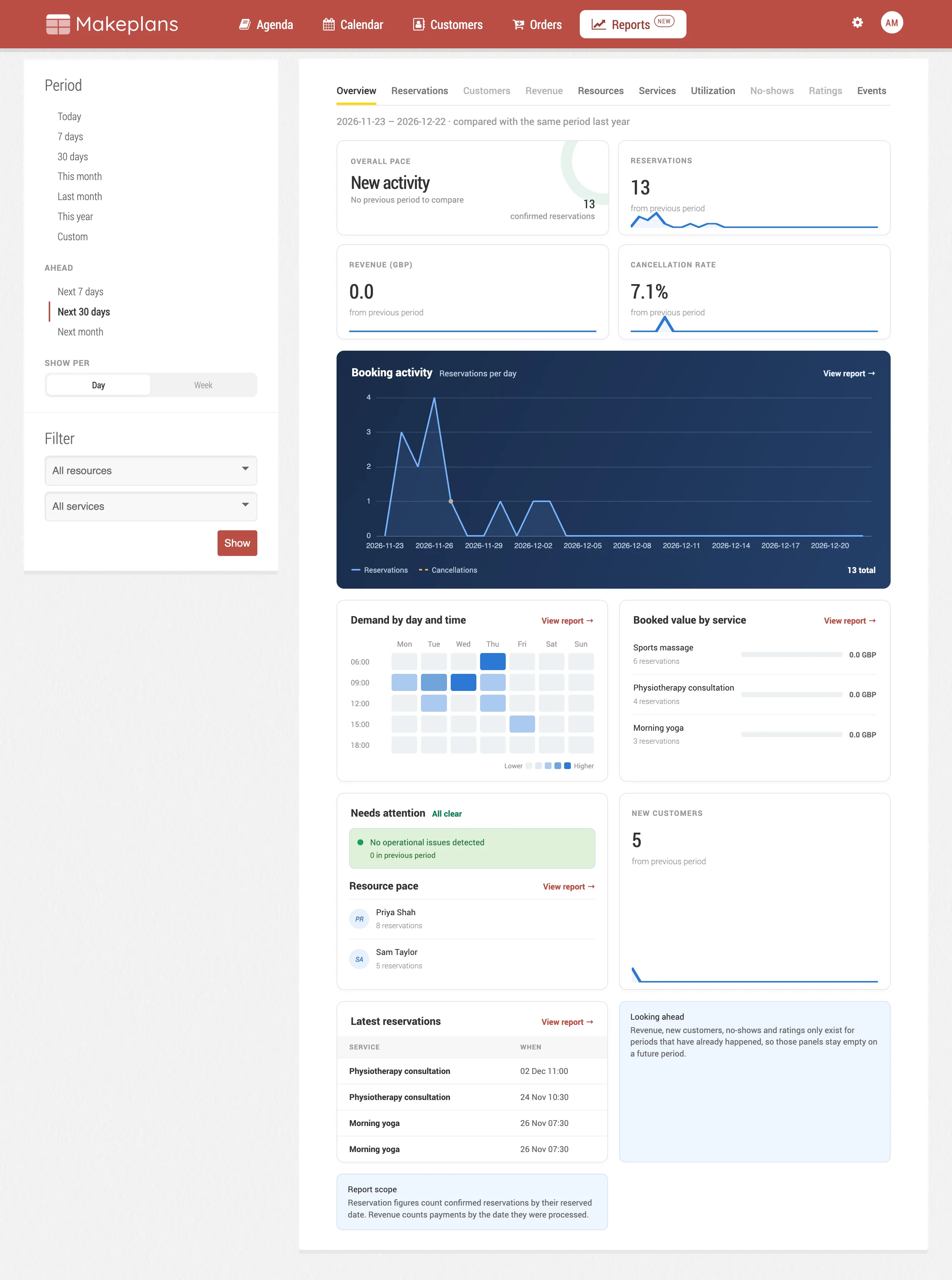
Choose the period
On the left, under Period, choose Today, 7 days, 30 days, This month, Last month, This year or Custom. Under Ahead you can look forward: Next 7 days, Next 30 days or Next month.
Show per switches the charts between days and weeks. Under Filter, choose a resource or a service and select Show.
The overview compares the period with the one before it.
What is counted
- Reservation figures count confirmed reservations by the date they are reserved for.
- Revenue counts payments by the date they were processed, not the date of the reservation.
The reports
| Report | Shows |
|---|---|
| Overview | Confirmed reservations, revenue, cancellation rate and new customers, reservations per day, demand by day and time, booked value by service, reservations per resource and the latest reservations. Needs attention points out things to look at. |
| Reservations | Reservations and attendees per day, per weekday and per hour. |
| Customers | New and returning customers, top customers, and the rebooking rate: the share who made a new reservation within 8 weeks of their first visit in the period. |
| Revenue | Payments collected per day. |
| Resources | Reservations, attendees and booked value per resource. |
| Services | Reservations, attendees and booked value per service. |
| Utilization | Booked hours against open hours per resource. |
| No-shows | No-shows per day, weekday, hour, resource and service, and the customers with the most no-shows. |
| Ratings | Average rating per day, resource and service, the response rate and the lowest rated reservations. |
| Events | Each event with attendees, capacity, fill rate and waitlist, and how early events fill up. |
| Timing | How far ahead customers book, when reservations are made, and how late cancellations come. |
More detailed reporting
For your own calculations, export the data and work with it in a spreadsheet. Open setup and select Export. For payment reporting, use the reports of your payment provider, since that is where the money is processed.