
Book an appointment
Booking sites can look different from business to business, but the steps are the same.
1. Choose what to book
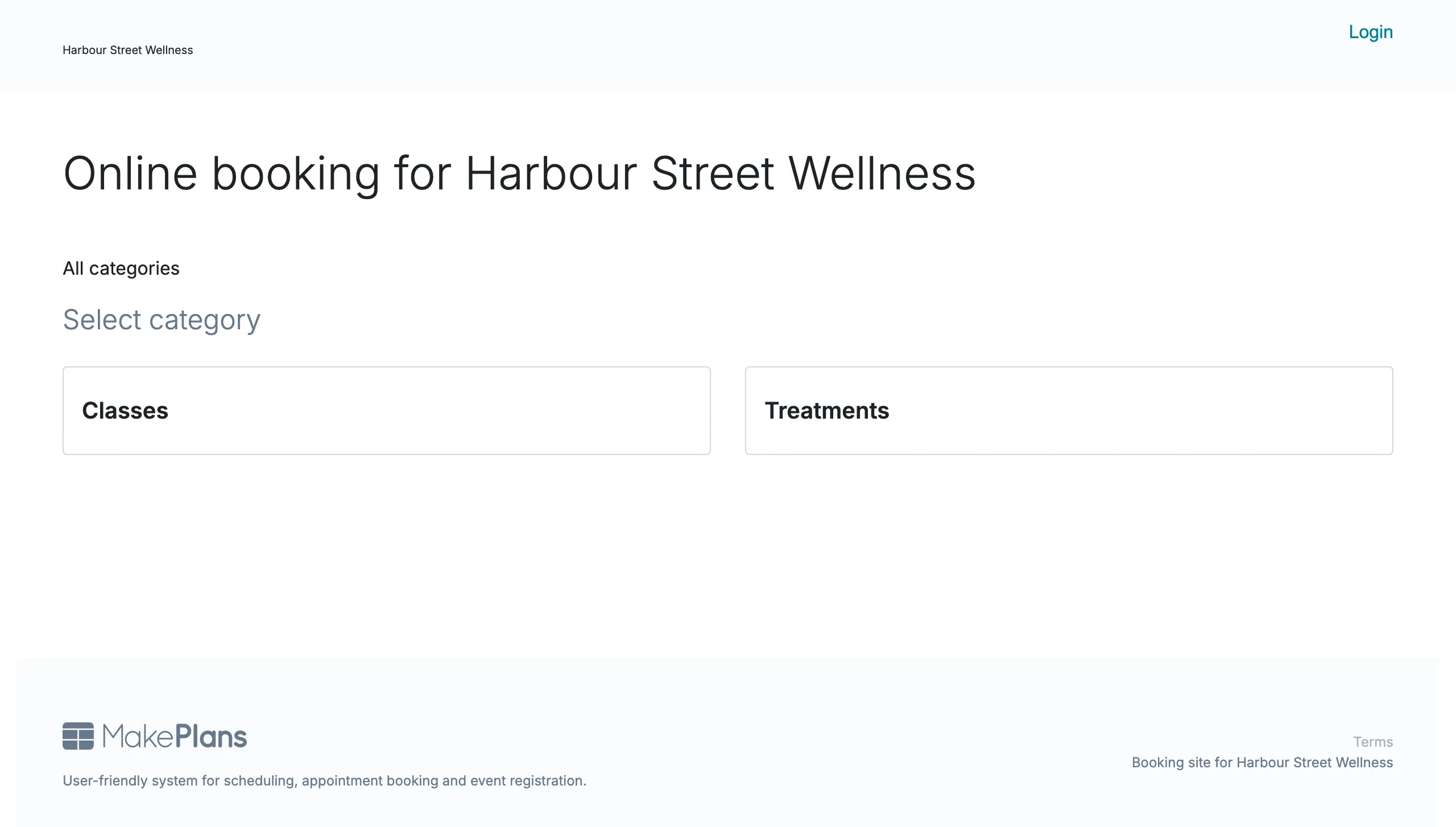
Open the booking site of the business. Select a category if you are asked to, then the service you want.
2. Choose a date and a time
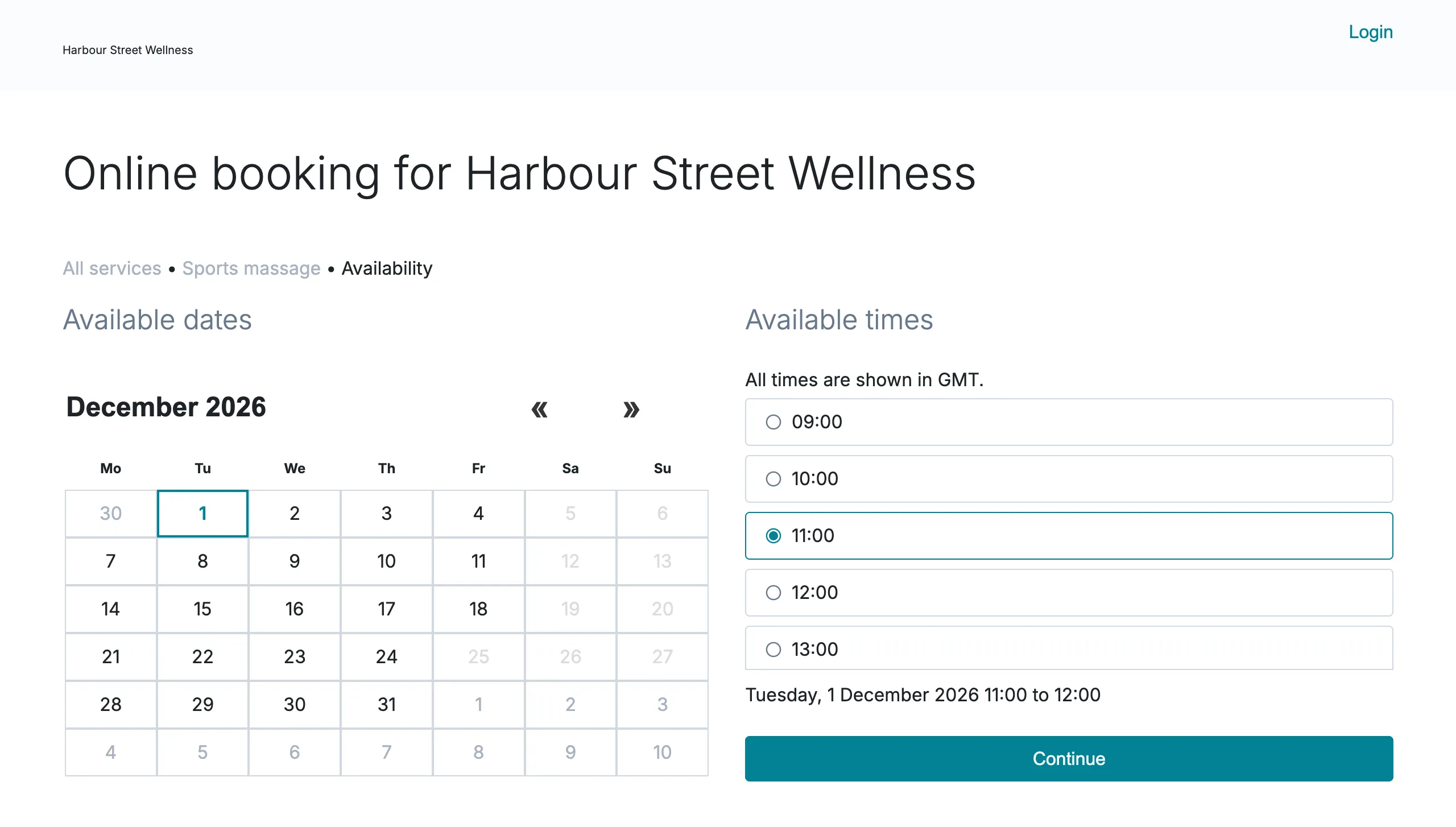
Select a date in the calendar. Dates in grey have no free times. Select one of the available times, then Continue.
3. Confirm who you are
Enter your email address or mobile number and select Continue. You receive a code by email or SMS. Enter the code and select Continue.
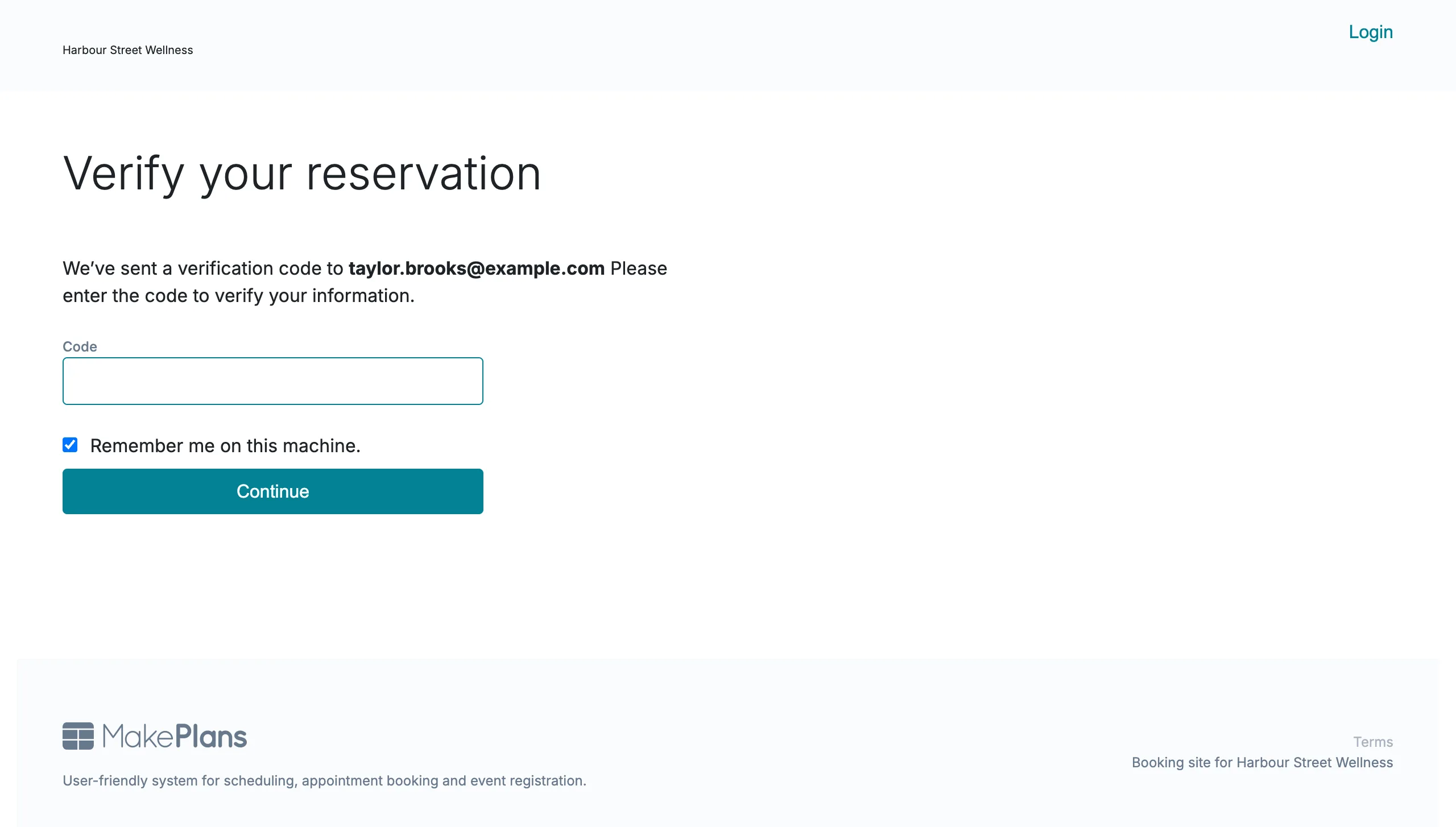
Leave Remember me on this machine ticked if you want to skip this step next time on the same device.
The first time you book, you are also asked for your name and contact details.
4. Complete the booking
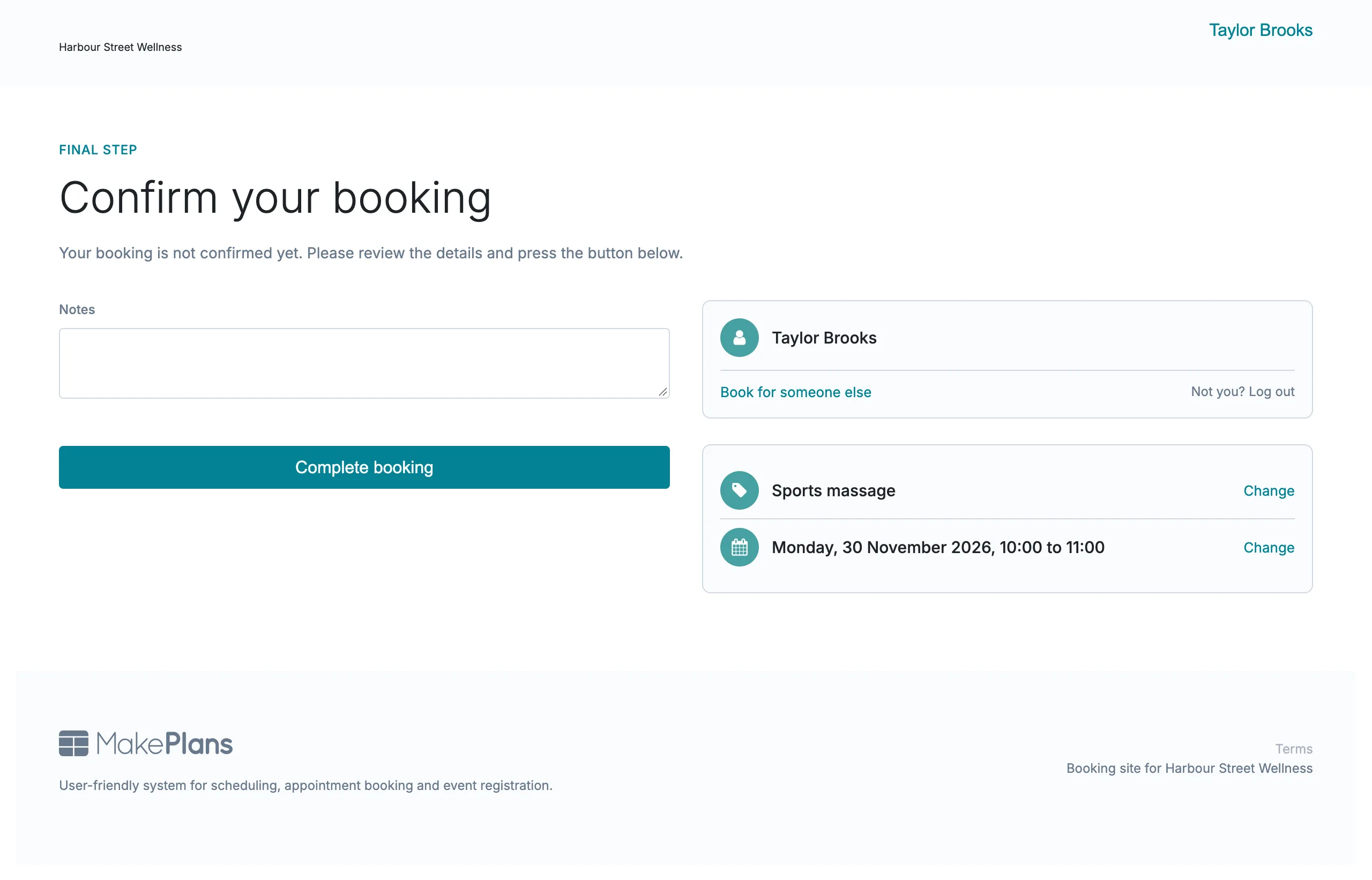
Check the service and the time, add a note if you want, and select Complete booking.
WARNING
Your appointment is not booked until you have selected Complete booking and see the confirmation.
Some businesses ask you to pay at this point, or confirm your request before the appointment is final.
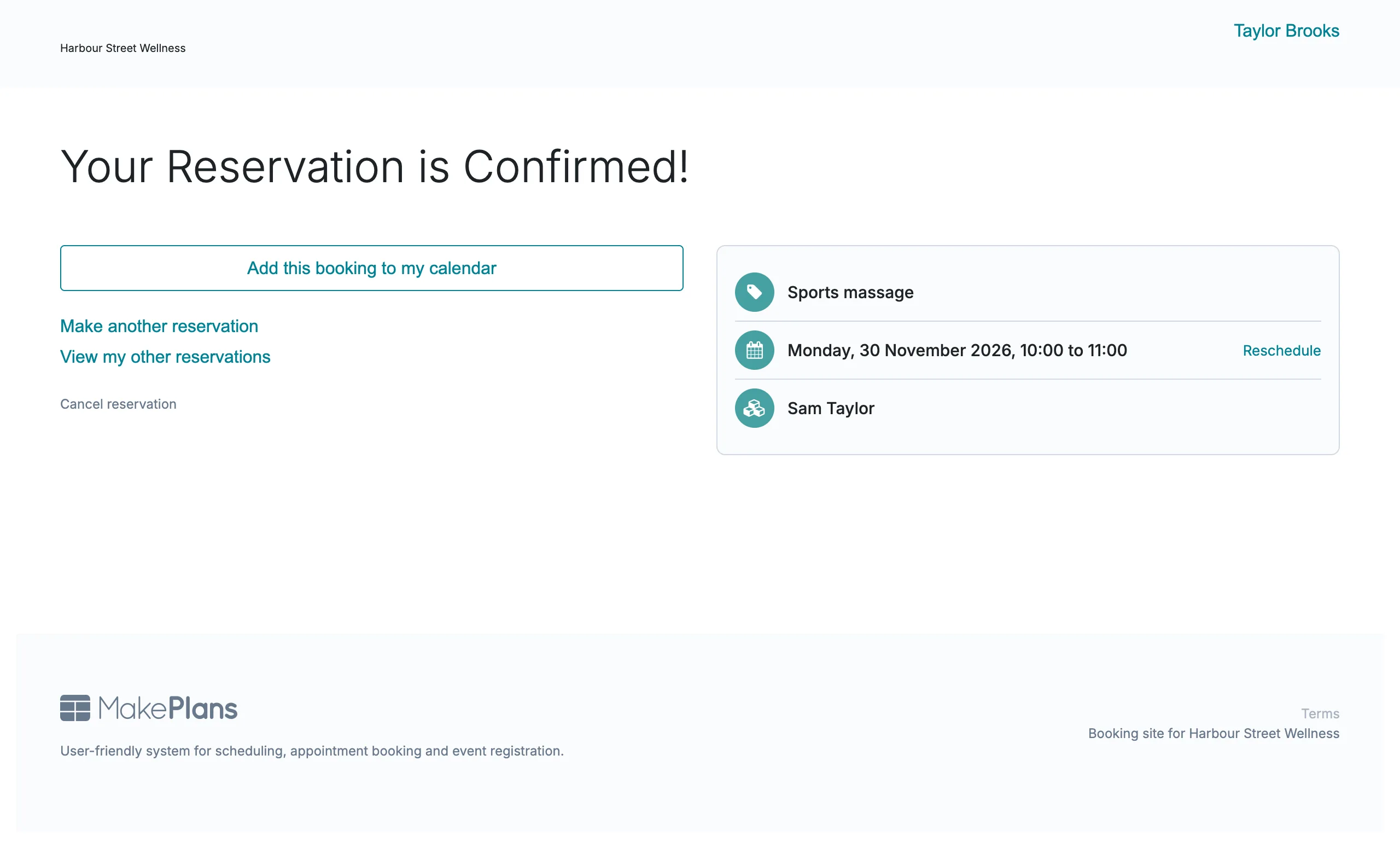
5. Confirmation
You see a confirmation on the screen and receive one by email or SMS. From the confirmation page you can add the appointment to your own calendar.
If something does not work
- You did not get the code. Check your spam folder, and that you typed your email address or mobile number correctly. If you have booked before, the code goes to the email or number the business has registered for you.
- No times are shown. The day may be fully booked. Try another date.
- A message says your details do not match your profile. You may be booking for someone else. See Book for someone else.
For anything else, contact the business you are booking with.