
Embed in your website
There are two ways to bring customers from your website to your booking site: a link or button that opens it, or an iframe that shows it inside your own page. We recommend a link or button.
Link or button (recommended)
Open setup and select Promote, and copy the HTML code for the button or the link into your website. See Promote.
The booking site opens in a new tab and works on all screen sizes. To make it feel like part of your website, upload your logo and add your own CSS. See Design.
Iframe
An iframe shows the booking site inside a page on your website. Use your booking site address as the source:
<iframe src="https://youraccount.makeplans.com" width="100%" height="800" frameborder="0"></iframe>
Before it works, you must approve your website’s domain.
Approve your domain
For security, the booking site can only be embedded on domains you have approved.
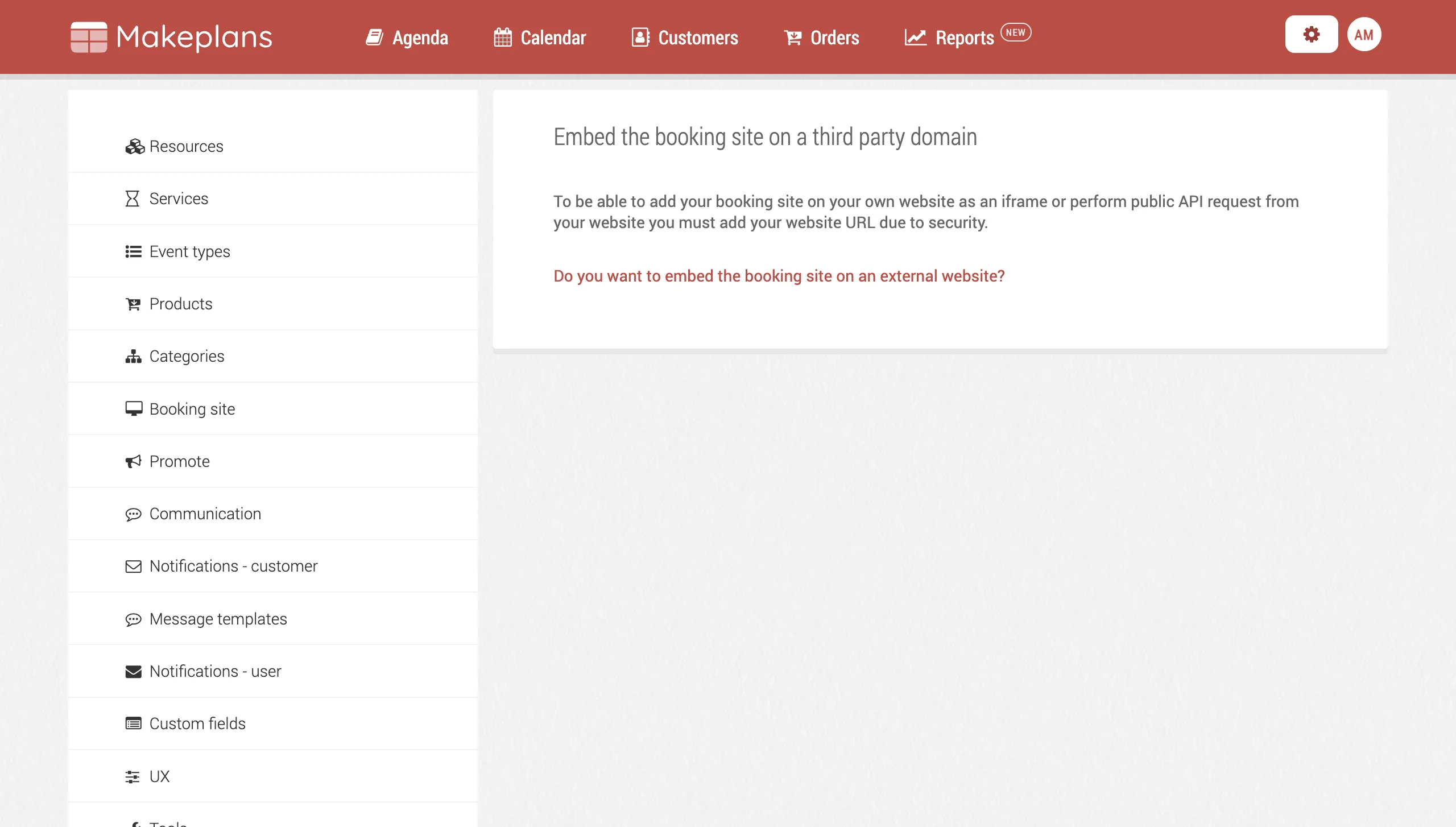
- Open setup and select Developer, then Embed.
- Select Do you want to embed the booking site on an external website?
- Enter the address of your website with
https://, for examplehttps://www.example.com. Enter the domain only, without a path. One entry covers every page on the domain. - Select Save.
Your website must use HTTPS. If the domain is not approved, the iframe stays empty. If an embed that used to work has stopped, a missing or changed domain is almost always the reason.
Limits of an iframe
Browsers block cookies from other sites inside iframes. As a result:
- Customers cannot log in inside the iframe. Links in confirmation emails, such as the cancellation link, open the booking site in its own tab and work as normal.
- It can be awkward on mobile. Scrolling and sizing problems are common, and long forms or error messages can end up out of view.
- Tracking is less reliable. Google Analytics often shows fewer reservations than were made.
Where to paste the code
No plugin is needed. Paste the HTML for the link, button or iframe into an HTML block.
| Platform | Block to use |
|---|---|
| WordPress | Custom HTML |
| Wix | Embed HTML |
| Squarespace | Code |
| Webflow | Embed. Without embed support on your plan, add a Button and enter the booking site address as its link. |
| Plain HTML | Paste the code into the page. |
Show one employee’s times
To send customers to the times of one resource, add selected_resources to the address of a service’s times, for example:
https://youraccount.makeplans.com/services/12-haircut/slots?selected_resources=34
The numbers are the ones in the addresses of the service and the resource in setup.
Use your own domain
Your booking site can have an address such as booking.example.com instead of youraccount.makeplans.com. This is a paid add-on. Open setup and select Addons, then Custom domain. Use a subdomain of your website, not the main domain.
Build your own booking flow
For full control you can build your own booking experience with the API. See developer.makeplans.com. Your domain must be approved under Embed for this too.