
Share your booking site
Customers reach your booking site through its address. You can link to it from your website, social media and emails, or print it as a QR code.
Select the cog to open setup, then select Promote. The page shows the address of your booking site and three ways to share it.
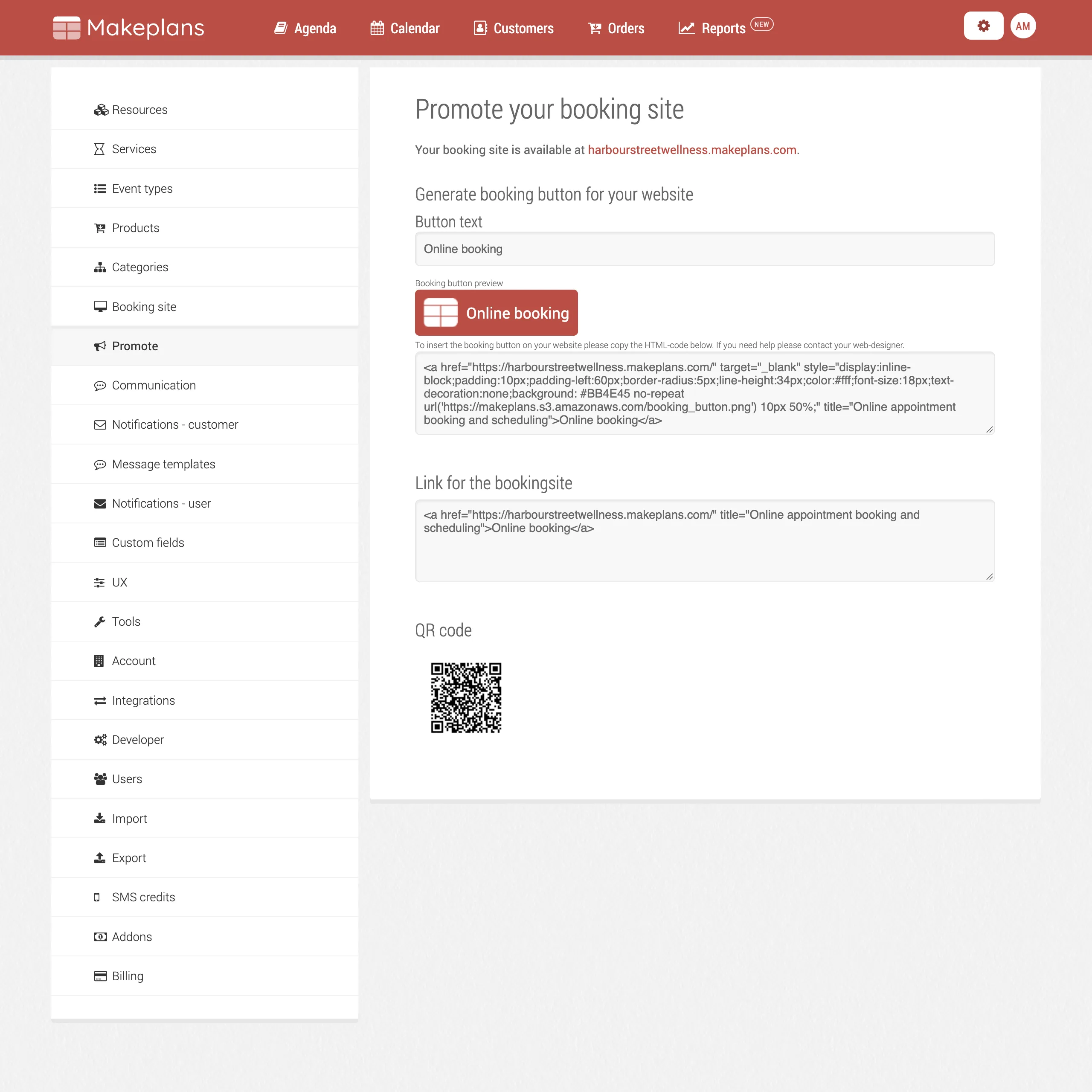
Booking button for your website
- Change the Button text if you want something other than “Online booking”.
- Check the Booking button preview.
- Copy the HTML code below the preview and paste it into your website where the button should appear.
If you do not edit your website yourself, send the code to the person who does.
Plain link
Under Link for the bookingsite, copy the HTML for a normal text link. To share the address itself, for example on social media or in an email signature, copy the address shown at the top of the page.
QR code
Use the QR code on posters, flyers or a sign at your reception. Customers scan it with their phone camera to open the booking site.
Change the address
The address is made from your company name when you sign up. To change it, select Account in setup and edit URL (subdomain). Do this before you share the address widely.