
Approve reservations manually
By default a reservation made on the booking site is confirmed straight away. If you want to look at each one first, turn on approval. The customer then sends a request, which you confirm or decline. The time is held for the customer while the request is waiting.
Turn on approval
For all services:
- Open setup and select Booking site, then Rules.
- Tick Reservations has to be approved by an administrator.
- Select Save.
For one service or event type: edit it and set Reservations has to be approved by an administrator to Enabled. Set it to Disabled to exempt a service when approval is on for the account.
What the customer sees
After completing the booking, the customer sees “Reservation requires confirmation” and is asked to wait for you to confirm. They also receive a message that the request is received.
Confirm or decline
You receive an email for each new request. In the Agenda, the tab Awaiting confirmation shows how many are waiting.
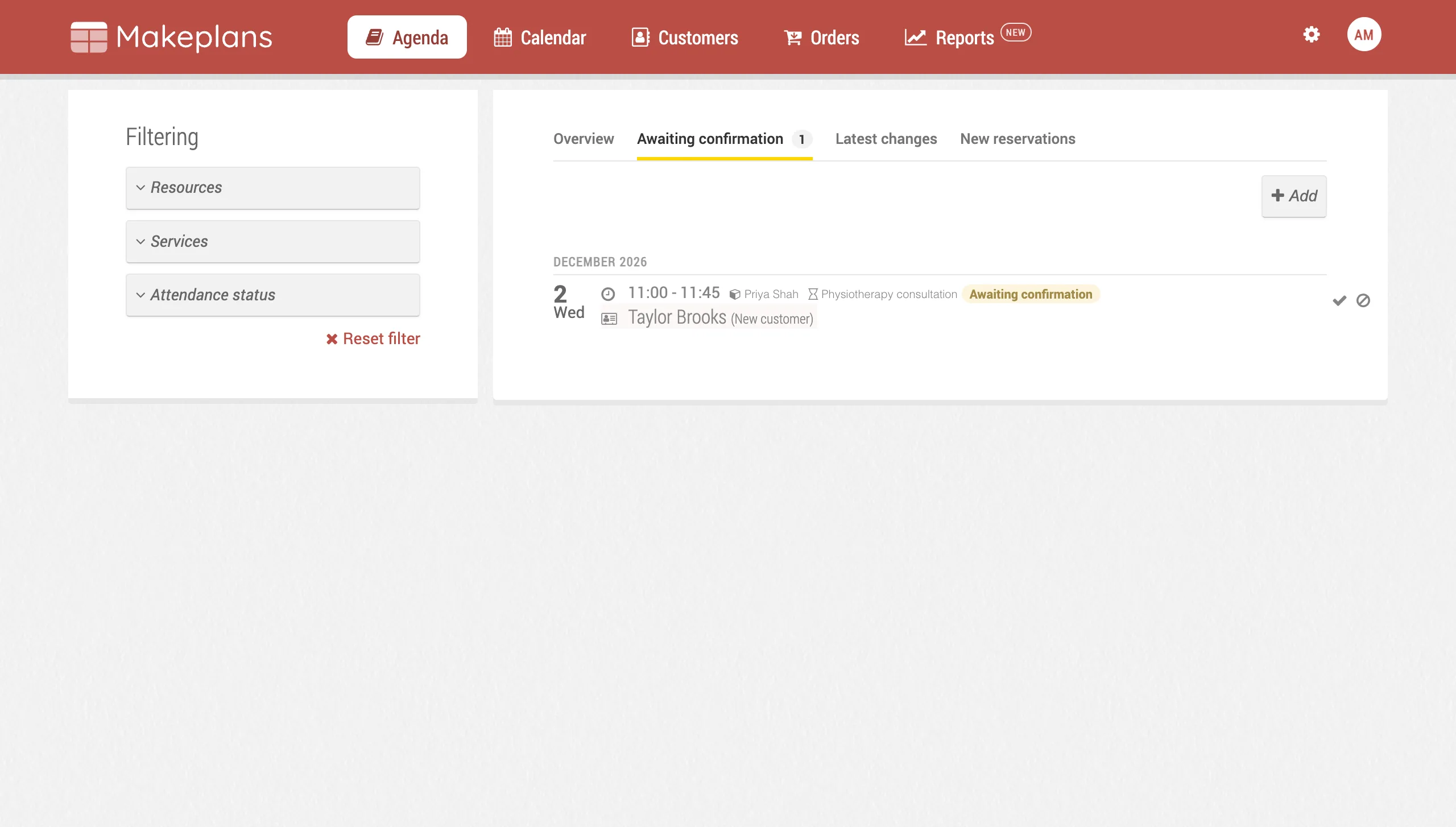
- Open the Agenda and select Awaiting confirmation.
- Open the reservation. Its status is “Awaiting confirmation”.
- Select Confirm or Decline.
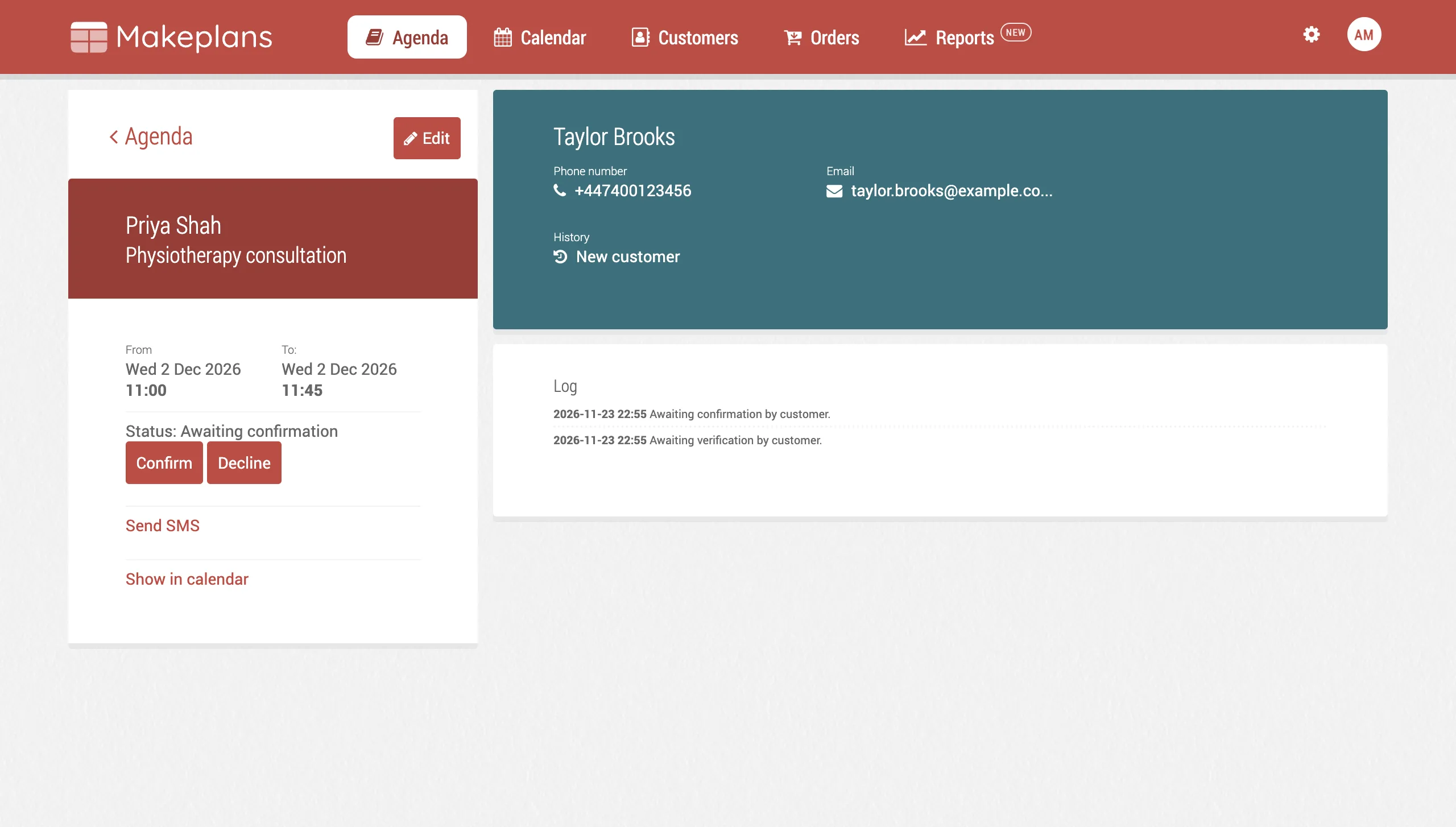
When you confirm, the customer receives the normal confirmation. When you decline, the customer is told and the time becomes available to others again.
Texts and notifications
- The text customers see while waiting is set under Booking site, then Texts, in Text displayed when booking is waiting for confirmation.
- The messages sent to the customer are set under Communication, in the “awaiting confirmation” and “declined” texts.
- Whether you are notified of new requests is set under Notifications - user.
See Notifications.