
Your profile, password and login
Your profile
Select your initials in the top right corner, then Profile.
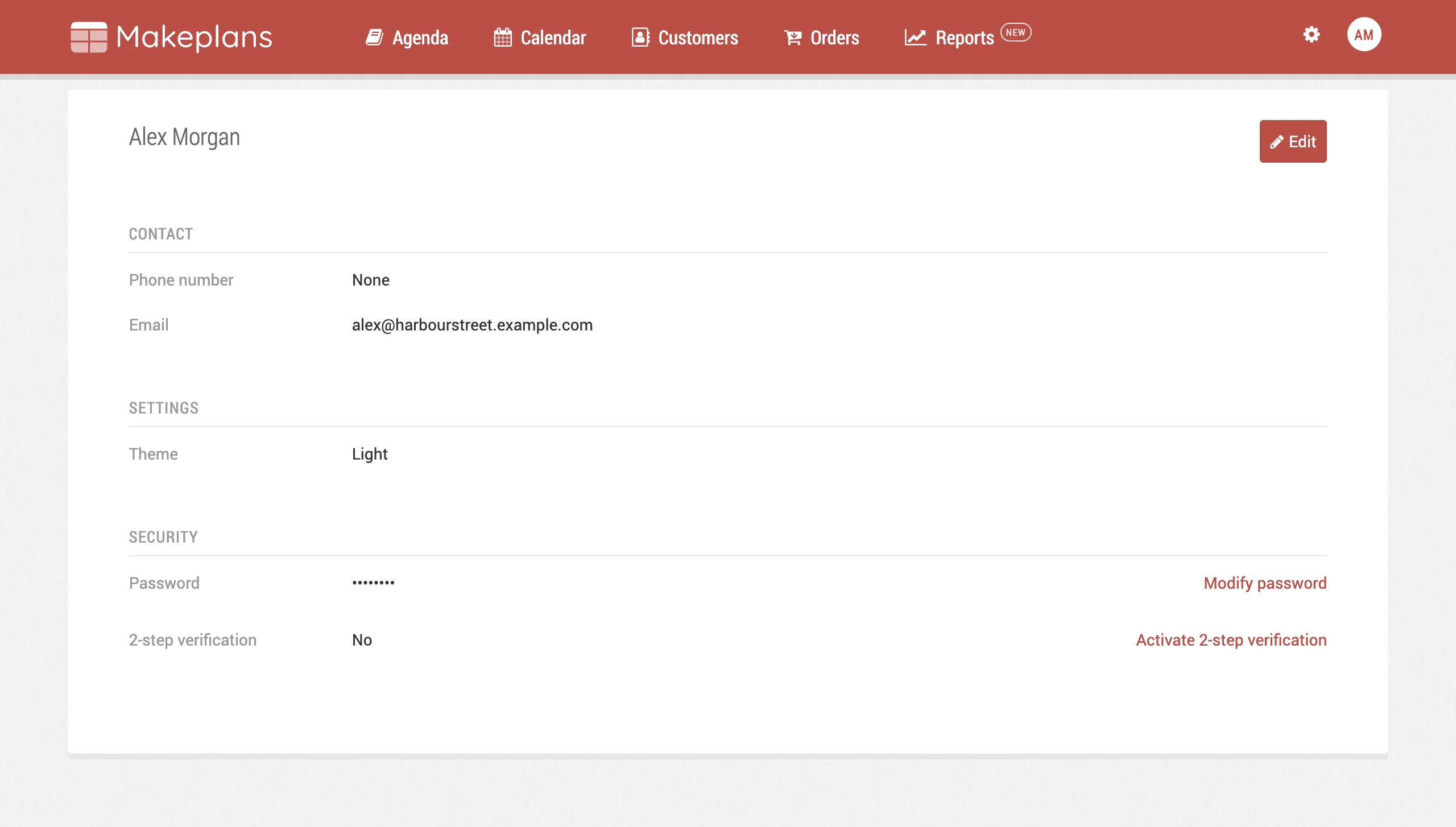
| Action | What it does |
|---|---|
| Edit | Change your name, phone number, email and the theme of the admin: Light, Dark or Auto (follow system). |
| Modify password | Enter your current password and a new one. |
| Activate 2-step verification | Requires a code from an app on your phone in addition to your password when you log in. |
Use a password you do not use anywhere else, and turn on 2-step verification.
You have forgotten your password
Use the forgot password link on the login page. You receive an email with a link for choosing a new password.
If the email does not arrive:
- Check that you entered the email address you are registered with as a user. Another address gets no email.
- Check your spam folder.
- Make sure you submitted the form after entering the address.
- Contact support. We can check whether the email was delivered and send it again.
Nobody at MakePlans can see or send you your password. It is stored encrypted, so the only way is to choose a new one.
A new colleague cannot log in
They need their own user. A user with full access adds them in setup under Users. See Users and access levels.
The account owner has left
Try these in order:
- Use the registered email address. If your company still controls the former employee’s mailbox, use forgot password with that address, add yourself as a user with full access, and remove the old user.
- Ask another user with full access to add you.
- Contact support for a verified transfer. If nobody with full access can be reached and the mailbox is gone, we can transfer access after verifying it with your company. We send an agreement that must be signed digitally by someone who can sign for the organisation.
For security, we never hand out access on request alone.