
Edit the standard messages
Open setup and select Communication. The page has one field for each standard message, grouped by SMS and email. Select Save at the bottom when you are done.
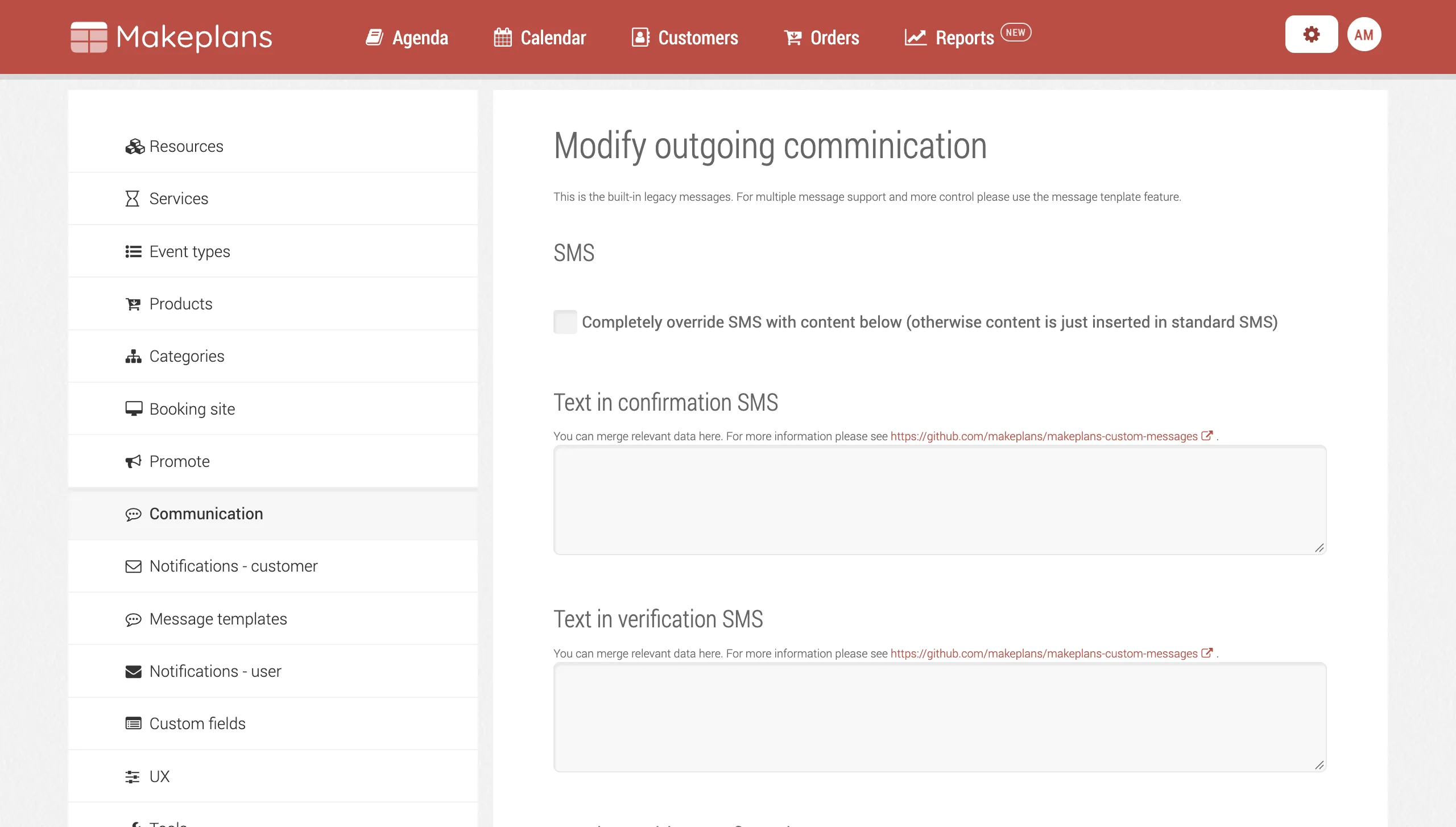
Add your own text
What you write in a field is added to the standard message. The standard content, such as the time, the service and the verification code, is kept.
| Kind | SMS | |
|---|---|---|
| Confirmation | Text in confirmation SMS | Subject and Text in confirmation email |
| Verification | Text in verification SMS | Subject and Text in verification email |
| Awaiting confirmation | Text in awaiting confirmation SMS | Mail awaiting confirmation subject and Mail awaiting confirmation |
| Modification | Text in modification SMS | Subject and Text in modification email |
| Cancellation | Text in cancellation SMS | Subject and Text in cancellation email |
| Declined | Text in declined SMS | Subject and Text in declined email |
| Reminder | Text in SMS reminder | |
| Payment request | Text in payment request SMS | Subject and Text in payment request email |
Tips:
- Do not write “your reservation is confirmed” in the verification message. At that point it is not confirmed yet. Put that in the confirmation message.
- One SMS is 160 characters. A longer message is charged as two or more, so keep SMS texts short and put details in the email.
- Use merge fields to include the customer’s name, the time and other details.
Replace the whole message
Tick Completely override SMS with content below or Completely override emails with content below to send only your own text. We recommend leaving these off. When they are on, the standard text is not used, and you must include every detail yourself with merge fields, such as the time of the reservation.
The verification messages must always contain the verification code (SMS) or the verification link (email). The page cannot be saved without them.
Email settings
| Field | What it does |
|---|---|
| Email sender | The sender shown on your emails. |
| Do not include iCalendar attachment | Leaves out the calendar file that lets customers add the reservation to their own calendar. |
Calendar entry
Under iCalendar you can set the Title and Description of the calendar entry customers get.
Confirmations and reminders can also be sent on WhatsApp. This is set up together with support. See Integrations.
Texts for one service
A service can have its own texts. Edit the service and open Show content for outgoing communication. See Service form.