
Adjust your services
The wizard created your services with a title and a duration. Before you share your booking site, check the duration, add a price if you want one shown, and decide which resources offer each service.
Edit a service
- Select the cog to open setup, then select Services.
- Select the pencil next to the service.
- Change the fields you need. The ones to check first are listed below.
- Select Save service.
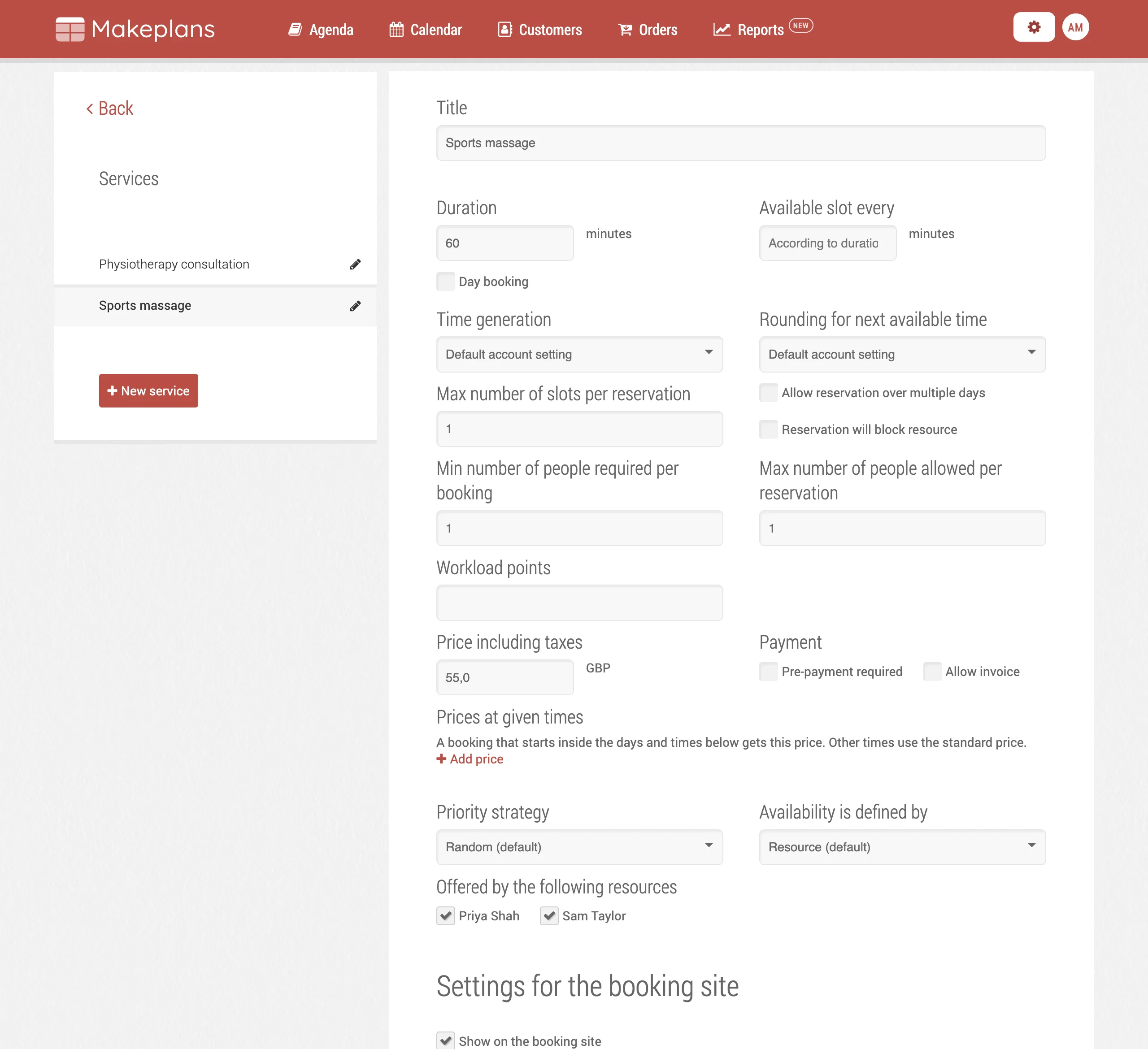
| Field | What it does |
|---|---|
| Title | The name customers see on the booking site. |
| Duration | How long one reservation lasts, in minutes. |
| Price including taxes | The price shown to customers. Leave it empty to show no price. |
| Offered by the following resources | Tick the resources that can deliver this service. Customers are only offered times when one of them is free. |
| Show on the booking site | Clear this to keep the service for your own use in the admin only. |
| Description | Text shown to customers when they select the service. |
The form has many more settings. You can leave them as they are to begin with.
Add a service
- In setup, select Services, then New service.
- Enter a Title and a Duration.
- Tick the resources that offer the service.
- Select Save service.
The service is shown on the booking site straight away.
Change the order of services
In setup, select Services, then Order to choose the order services are listed in.
Classes and events
If you also run classes, courses or events, create an event type in setup under Event types. Then open the Calendar, select Add, then New event to put an event on a date. New event appears in the Add menu once you have at least one event type.