
Categories
Without categories, the booking site lists all your services and event types on one page. If you offer many, group them into categories. Customers then choose a category first and see only the services in it.
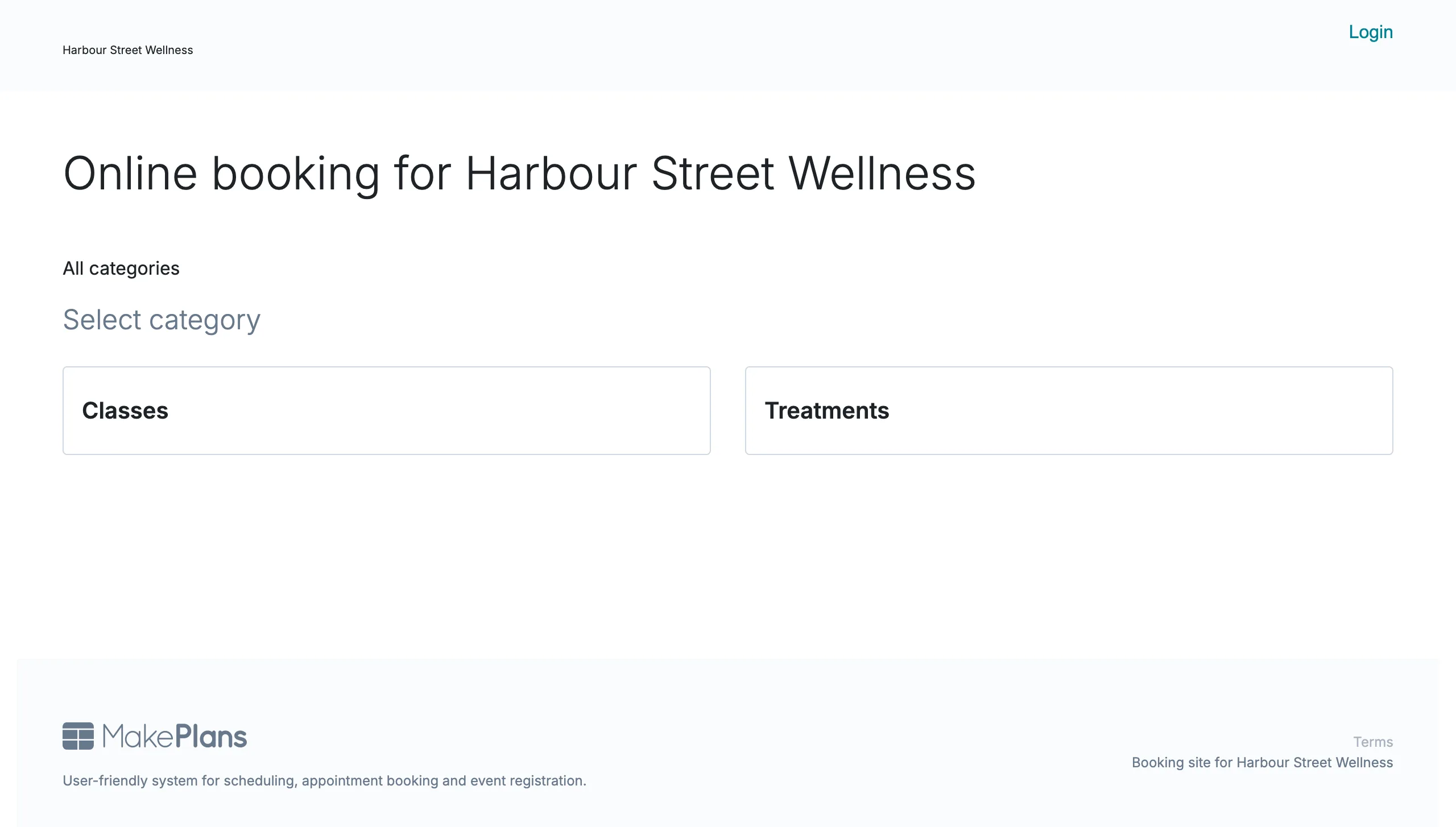
Create a category
- Open setup and select Categories, then New category.
- Enter a Title.
- Under Shows these services, tick the services and event types that belong in the category.
- Select Save category.
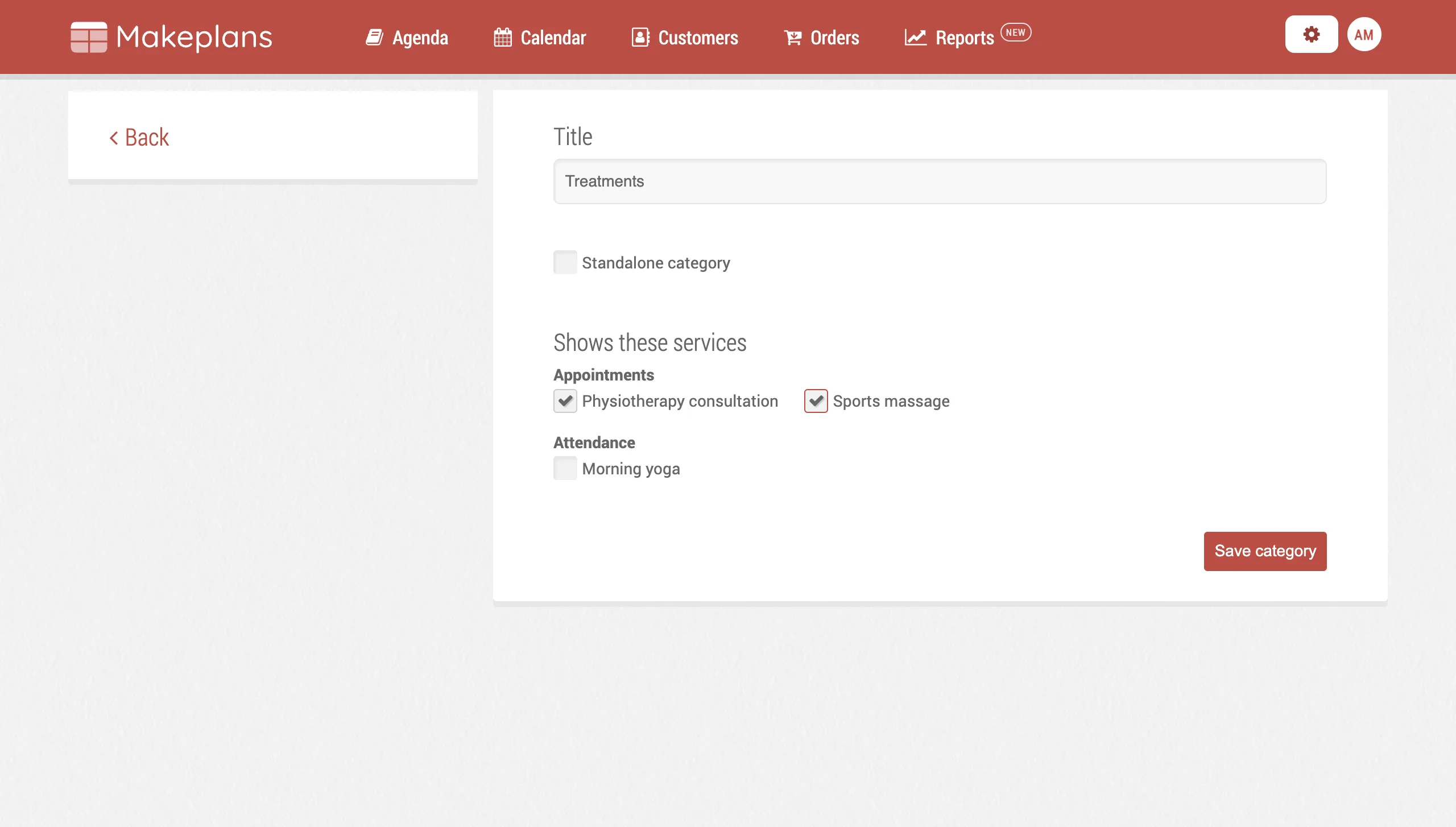
A service can be in more than one category.
WARNING
Categories are all or nothing. As soon as you have one category, the booking site shows only categories and the services inside them. A service or event type that is not in any category is no longer shown, so put every one of them in a category. The page of a service in the admin warns you when it is not in any category.
Categories in several levels
Once you have a category, the form has a Parent category field. Leave it on TOP LEVEL for a main category, or select another category to place the new one inside it. Customers then choose the main category first and the subcategory next.
Standalone category
Tick Standalone category for a category that should not be listed with the others on the booking site. Customers can only reach it through its direct link.
Link to a category
Select the name of a category in the list to open its page. Under Booking site you find Open category on booking site, which is the direct link to the category, and a QR code for it. On the same page, Order sets the order of the services inside the category.