
The calendar
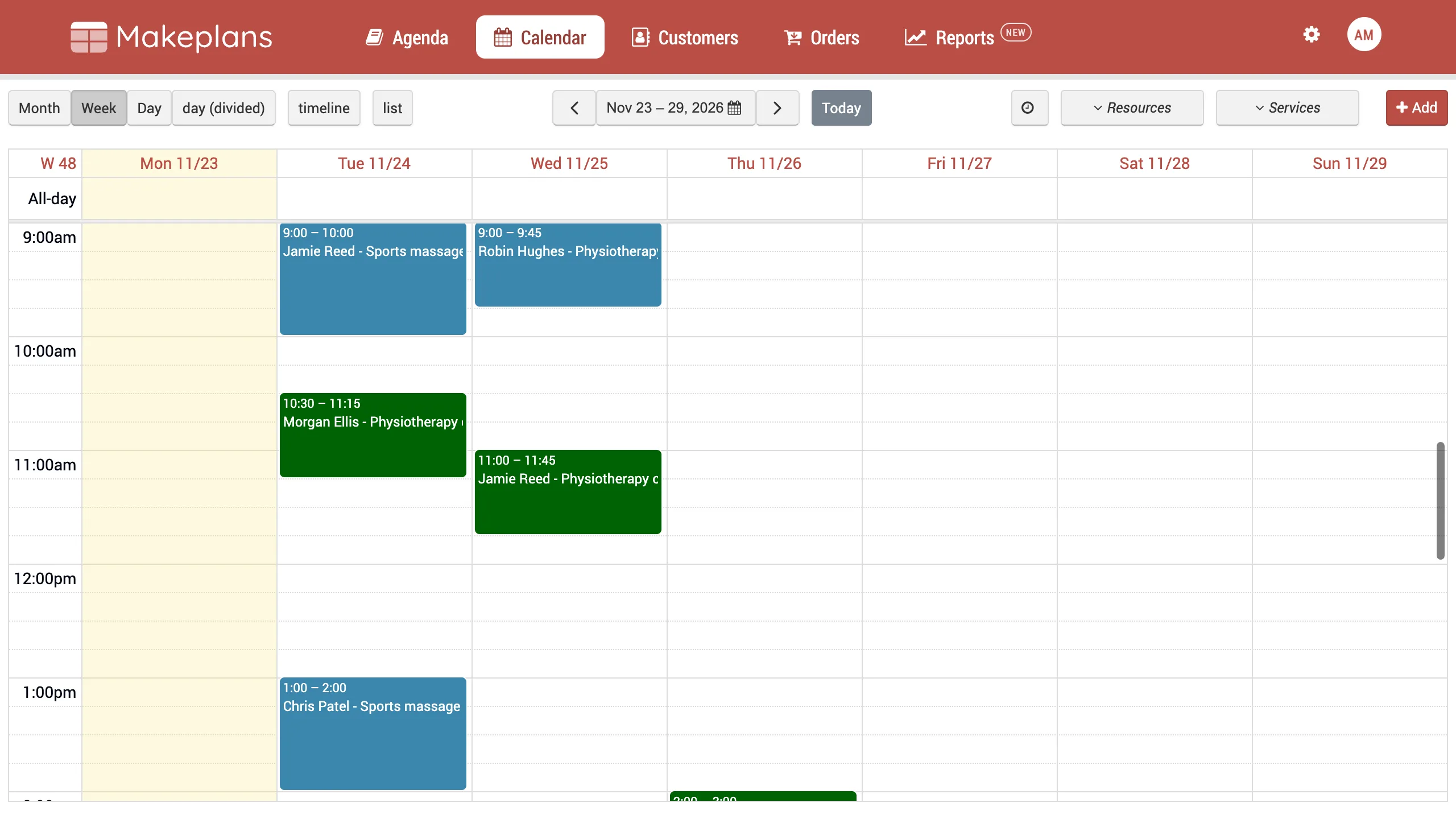
The Calendar shows your reservations and events on a time grid. Each resource has its own colour. An event shows how many have signed up, such as “Morning yoga (3/10)”.
Views
Choose a view with the buttons in the top left corner.
| View | Shows |
|---|---|
| Month | A whole month, with each reservation as one line. |
| Week | Seven days side by side. |
| Day | One day. |
| day (divided) | One day with a column for each resource. Good for comparing who is free. |
| timeline | One day with a row for each resource and the hours across. |
| list | The reservations of the week as a list. |
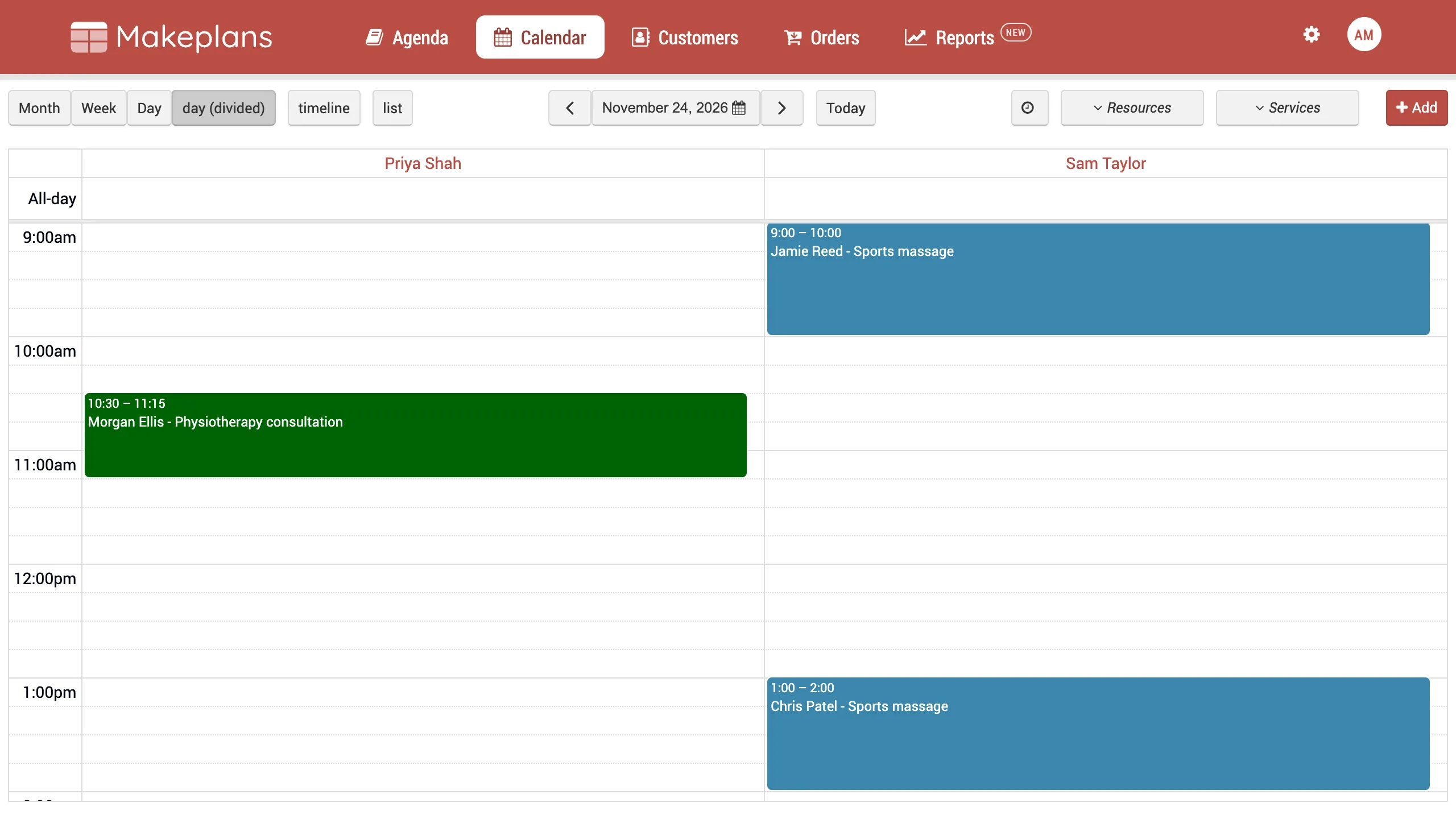
Move between dates
- Use the arrows to go one period back or forward.
- Select the date between the arrows to pick a date.
- Select Today to return to the current date.
Filter
Use Resources and Services in the top right to show only some resources or services.
Open a reservation
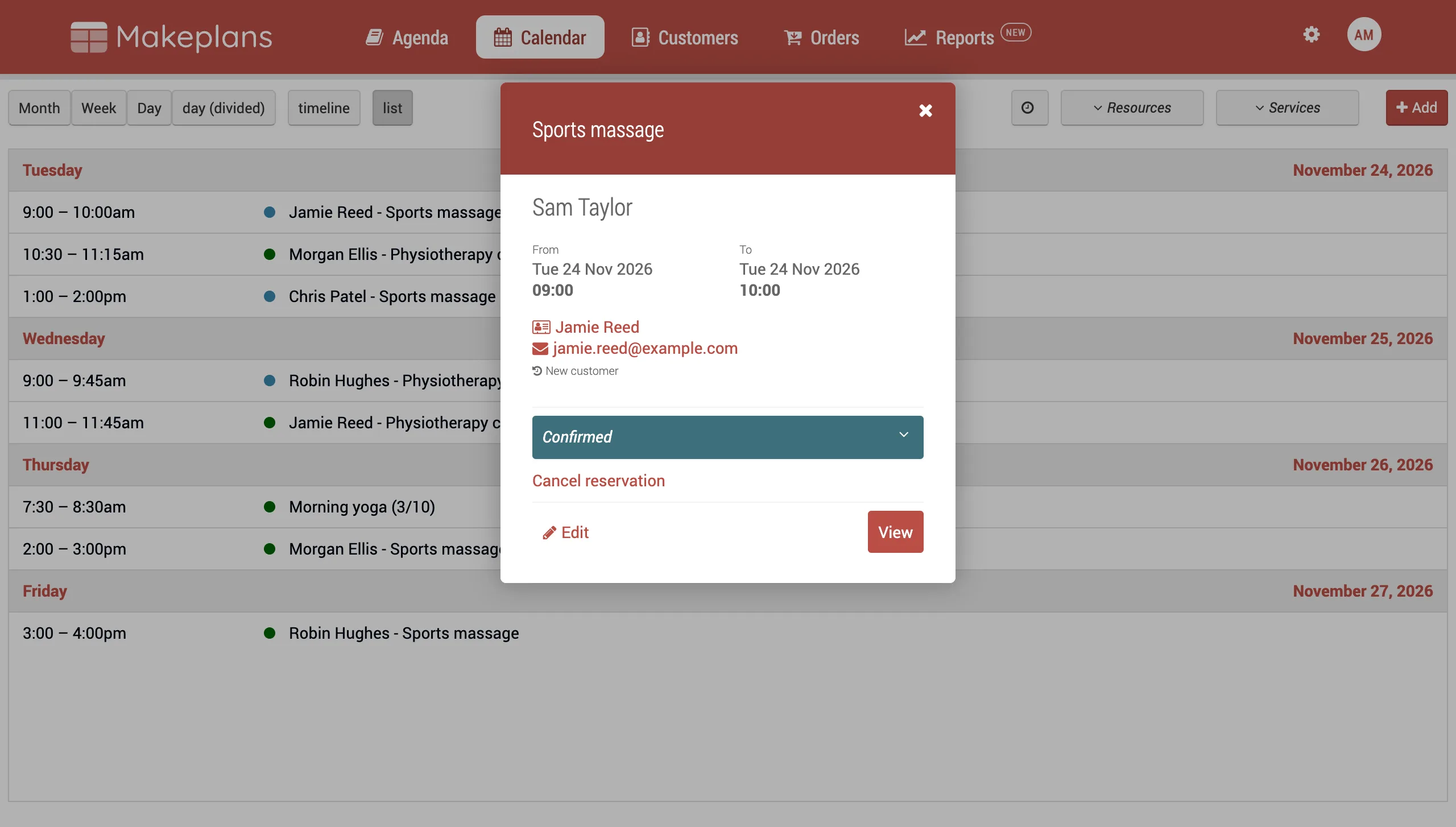
Select a reservation to see its details in a popup: the customer, the time and the status. From there you can change the status, select Cancel reservation, Edit it, or select View to open its page.
Add a reservation or an event
Select Add in the top right corner. See Create a reservation and Event types and events.
Change opening hours for the period
The clock button opens Adjust availability for this period. See Opening hours.