
Opening hours
Availability on the booking site is defined by the opening hours of your resources. There are two layers:
- Default availability on the resource applies to every week.
- Adjusted availability in the calendar applies only to the dates you change.
Default availability
- Open setup and select Resources.
- Select the pencil next to the resource.
- Under Default availability, tick each day the resource is open and enter From and To.
- Select Save resource.
A new resource is open Monday to Friday, 09:00 to 17:00.
Breaks
To make part of a day unavailable, give the day more than one period. Select + and below the day and enter the next period.
For example, 09:00 to 12:00 and 12:30 to 15:00 closes the resource between 12:00 and 12:30. You can add as many periods as you need.
Different hours on specific dates
- Open the Calendar and go to the week you want to change.
- Select the clock button, Adjust availability for this period.
- Find the resource and the date. Clear Open to close the day, or change From and To.
- Select Save.
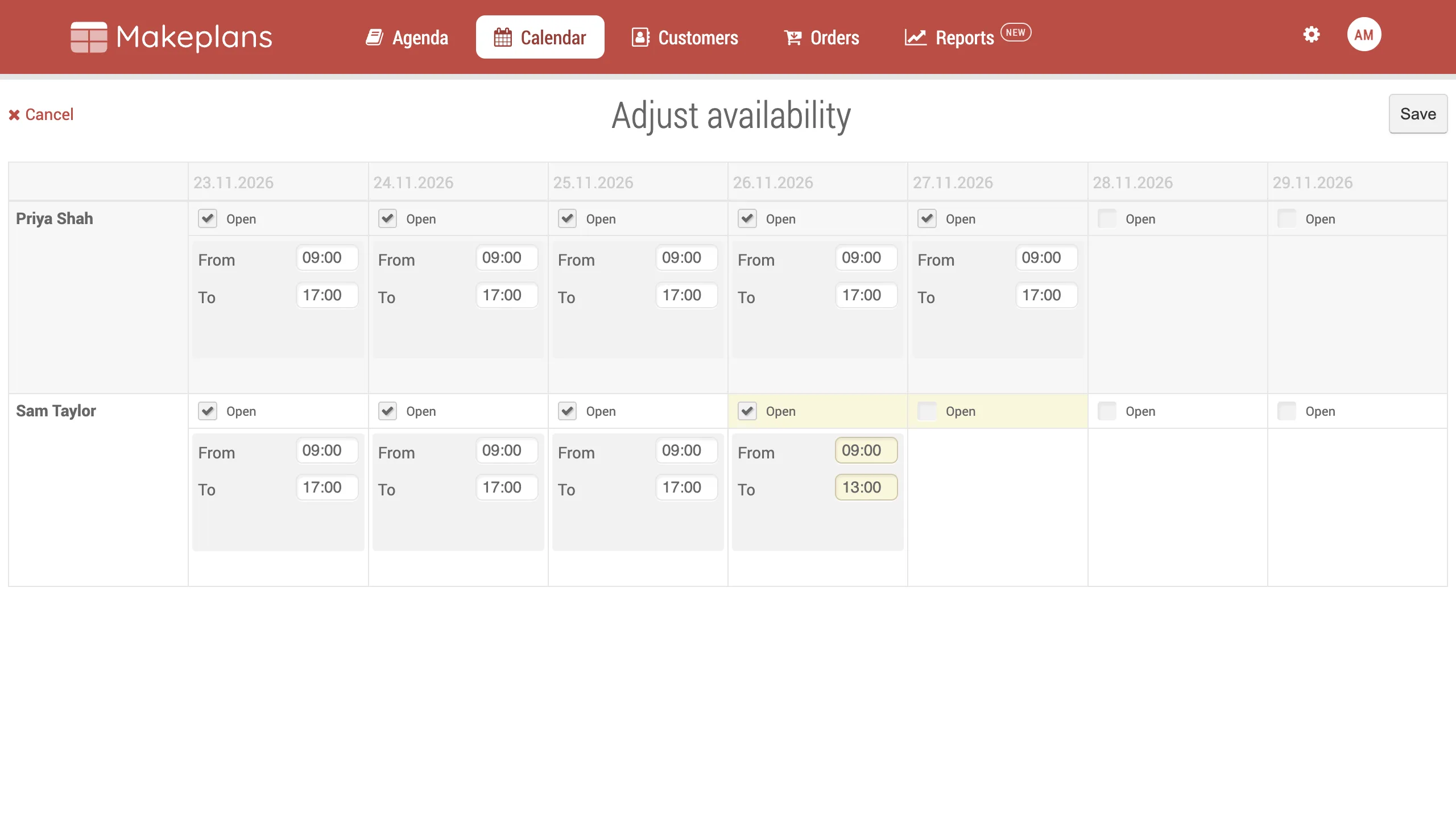
Only the dates you changed are affected. All other weeks keep the default availability.
Each resource row also has two shortcuts:
- Closed all period closes the resource on every day shown.
- Reset puts the resource back to its default availability for the period, if you change your mind.
Select + add on a day to give it a second period, and remove to take one away.
Open only on certain dates
Use this when a service can be booked only during a limited period, such as meetings during a two-day conference.
- Create a resource for each person or room that can be booked.
- In Default availability, clear every weekday so the resource is closed by default.
- Create a service and tick those resources.
- In the Calendar, go to the week you want to open and select the clock button.
- Tick Open and set the hours for the dates you want, then select Save.
Customers who select the service can book only on the dates you opened.
Different hours for one service
Opening hours on a resource apply to every service it offers. To give one service its own hours, such as a service offered Monday to Wednesday only, see Different opening hours for one service.