
Customer notifications
Open setup and select Notifications - customer. Select Save after your changes.
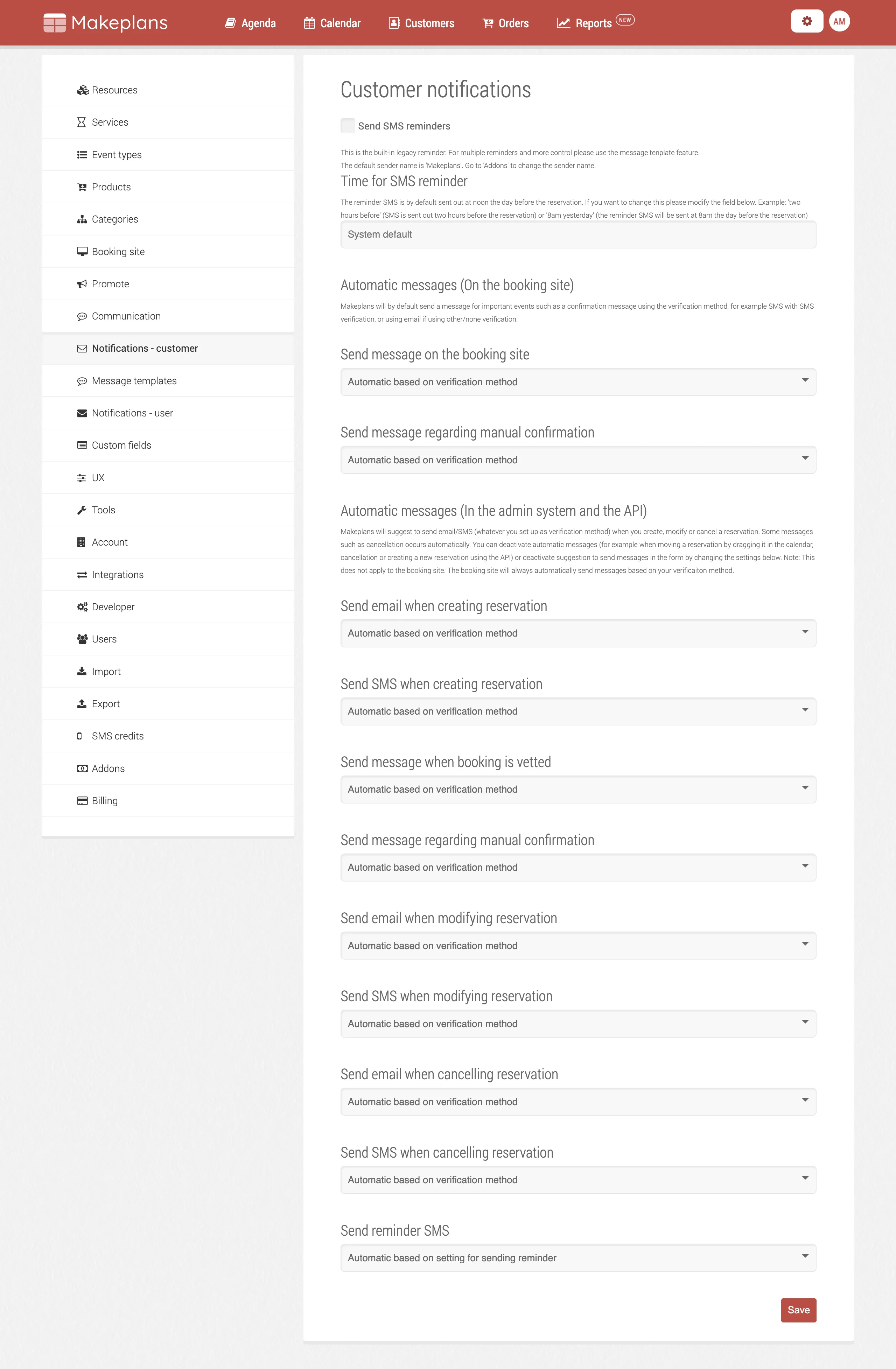
SMS reminders
- Tick Send SMS reminders.
- Optionally, change Time for SMS reminder. The default is noon the day before the reservation. Write the time in plain English, counted from the start of the reservation, such as
two hours beforeor8am yesterdayfor 8 AM the day before. - Select Save.
Good to know:
- Reminders are only sent for reservations made after you turn them on.
- If a reservation is made after the reminder time has passed, the reminder is sent shortly after the reservation is confirmed.
- Each reminder uses SMS credits.
This is the built-in reminder. For reminders by email, or more than one reminder, use message templates.
Automatic messages on the booking site
By default MakePlans sends a message for important events, such as the confirmation, the same way as your verification method: by SMS with SMS verification, otherwise by email.
| Setting | Choices |
|---|---|
| Send message on the booking site | Automatic based on verification method or Deactivate |
| Send message regarding manual confirmation | Automatic based on verification method or Deactivate |
Automatic messages in the admin and the API
When you create, change or cancel a reservation in the admin, the form suggests sending an email or SMS to the customer. Some messages are sent without asking, for example when you cancel, or move a reservation by dragging it in the calendar. The same applies to reservations made through the API.
Each of these can be set to Automatic based on verification method or Deactivate:
- Send email and Send SMS when creating reservation
- Send message when booking is vetted
- Send message regarding manual confirmation
- Send email and Send SMS when modifying reservation
- Send email and Send SMS when cancelling reservation
- Send reminder SMS
These settings do not affect the booking site. Reservations made there always send messages according to the section above.
Turn off SMS
To stop SMS confirmations and reminders, clear Send SMS reminders and deactivate the SMS settings above. The verification SMS follows your verification method. To avoid it, change to email verification under Booking site, then General. See Verification first if you already have customers.