
Change, move or cancel a reservation
Open the reservation from the Calendar or the Agenda. Its page shows the resource, the service, the time, the status and the customer, with a log of what has happened to it.
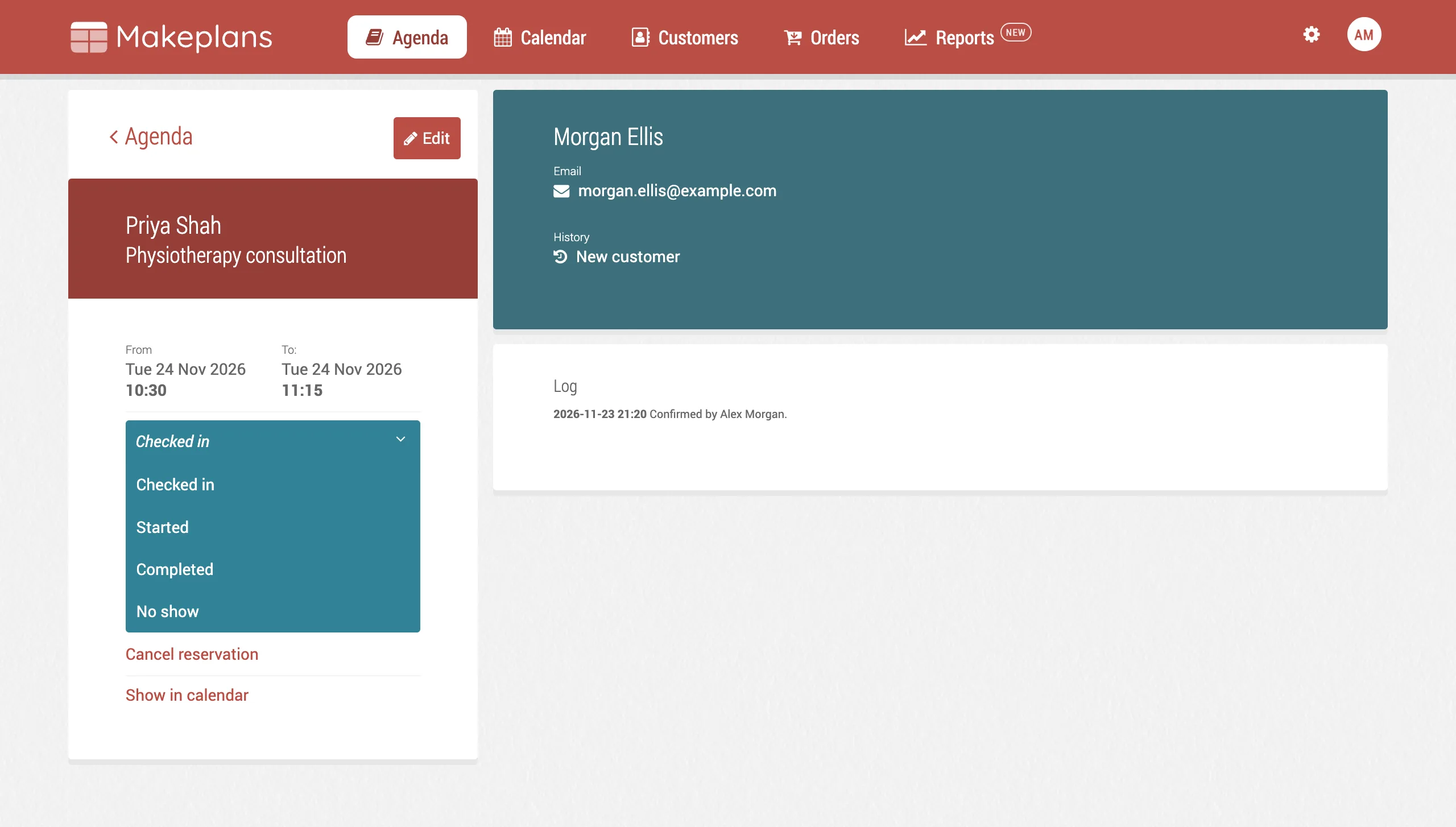
Change a reservation
- Select Edit.
- Change the service, resource, date or time. The free times that day are listed under Available slots on the left.
- Under Modification, tick Email or SMS to tell the customer about the change. Under Notification, choose whether the resource is told.
- Select Save appointment.
You can also move a reservation by dragging it to another time in the calendar.
Cancel a reservation
- Select Cancel reservation.
- Confirm that you want to cancel.
The status changes to Cancelled and the time becomes free again. The customer is sent a cancellation message, and you receive a notification about it.
Cancelling is the preferred way to remove a reservation. The reservation is kept and shown as cancelled. To see cancelled reservations, filter the agenda on the state Cancelled, or open the customer and select Show all reservations including deleted.
Delete a reservation
Deleting removes every record of the reservation. It is no longer shown on the customer’s page or anywhere else. Use it only for a reservation that should never have existed, such as a test or a mistake.
To delete, select Edit, then Delete.
The log
The Log on the reservation page lists each step with date and time, such as when the reservation was confirmed or cancelled, and by whom.
Which messages are sent
Whether customers are messaged when you create, change or cancel a reservation is set under Notifications - customer. See Notifications.