
Vacations, holidays and blocking dates
Availability is set per resource. Which method to use depends on how long the resource is away.
| Situation | Use |
|---|---|
| One day, or part of a day | Adjust availability for that date |
| A vacation of several days or weeks | A reservation of type Busy |
| A lunch break or weekly meeting | A break in the default availability, or a repeating Busy reservation |
| Public holidays | The Closed on public holidays setting |
| Everything closed for a while | Close the booking site |
Block a day or part of a day
- Open the Calendar and go to the week.
- Select the clock button, Adjust availability for this period.
- Clear Open for the date, or shorten the hours.
- Select Save.
The change applies to that date only. Repeat it for each week you need.
To close a resource for the whole week shown, select Closed all period on its row instead of clearing each day.
Block a vacation
Changing each date works for a day or two but takes time for longer periods. Add one busy reservation that covers the whole period instead.
- Open the Calendar, select Add, then New reservation.
- Select Busy at the top of the form.
- Enter a Title, such as “Vacation”.
- Select the Resource.
- Set Booked from and Booked to to the first and last day. Tick All day to block whole days, for example 24 December to 2 January.
- Select Save appointment.
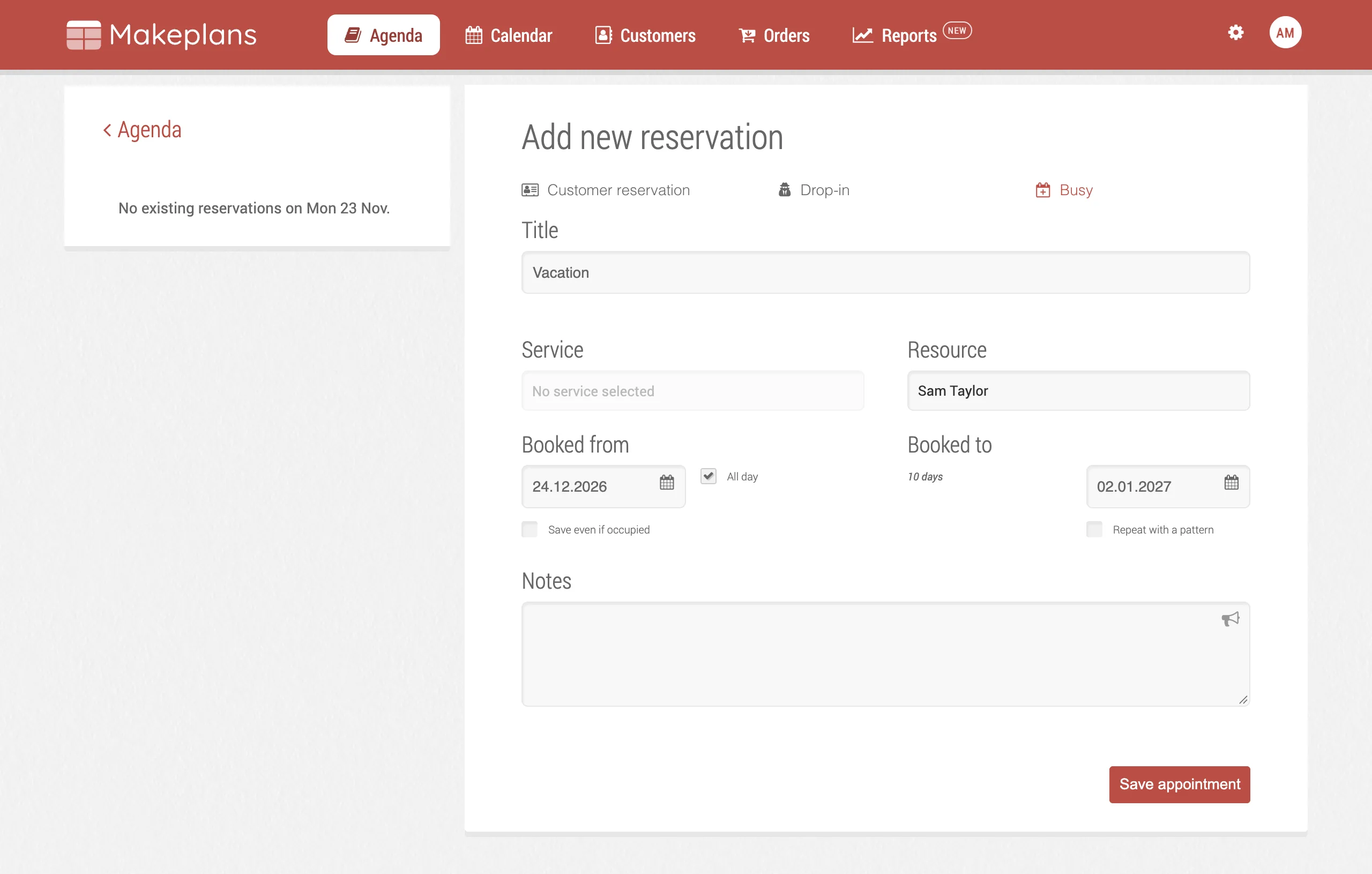
When the period is over, the resource is available again on its normal hours. Add one busy reservation for each resource that is away.
Block a recurring time
For a break at the same time every day, add it to the default availability as two periods.
For something that repeats on some days only, such as a weekly meeting, add a Busy reservation and tick Repeat with a pattern. Choose how often it repeats and when it ends.
Public holidays
The booking site is closed on public holidays by default. The holidays follow the country set on your account and cannot be edited.
- To be open on all public holidays, open setup, select Booking site, then Rules, and clear Closed on public holidays.
- To be open on one public holiday only, keep the setting on and use Adjust availability for this period to set hours for that date.
Close everything
To stop all reservations for a while, open setup, select Booking site, then General, and clear The booking site is available to the public.