
Event types and events
To offer classes, courses or other events you need three things:
- A resource. The event is placed on it. One resource named “Events” is usually enough. Use several only if you need MakePlans to prevent two events in the same room at the same time.
- An event type. A group of similar events, such as “Yoga” or “Beginner course”. It gives the events one shared list on the booking site.
- The events. Each has a date, a start and end time and a maximum number of attendants.
Create an event type
- Open setup and select Event types, then New event type.
- Enter a Title.
- Set the defaults for new events of this type: Duration, Price including taxes and Max number of attendants.
- Select Save service.
The other fields work as on the service form. What you set here is the default for each new event and can be changed on the event.
Create an event
- Open the Calendar and select Add, then New event. This choice appears once you have at least one event type.
- Select the Event type and the Resource.
- Set Starts at and Ends at.
- Check Max nr of attendants and Price including all taxes.
- Select Save event.
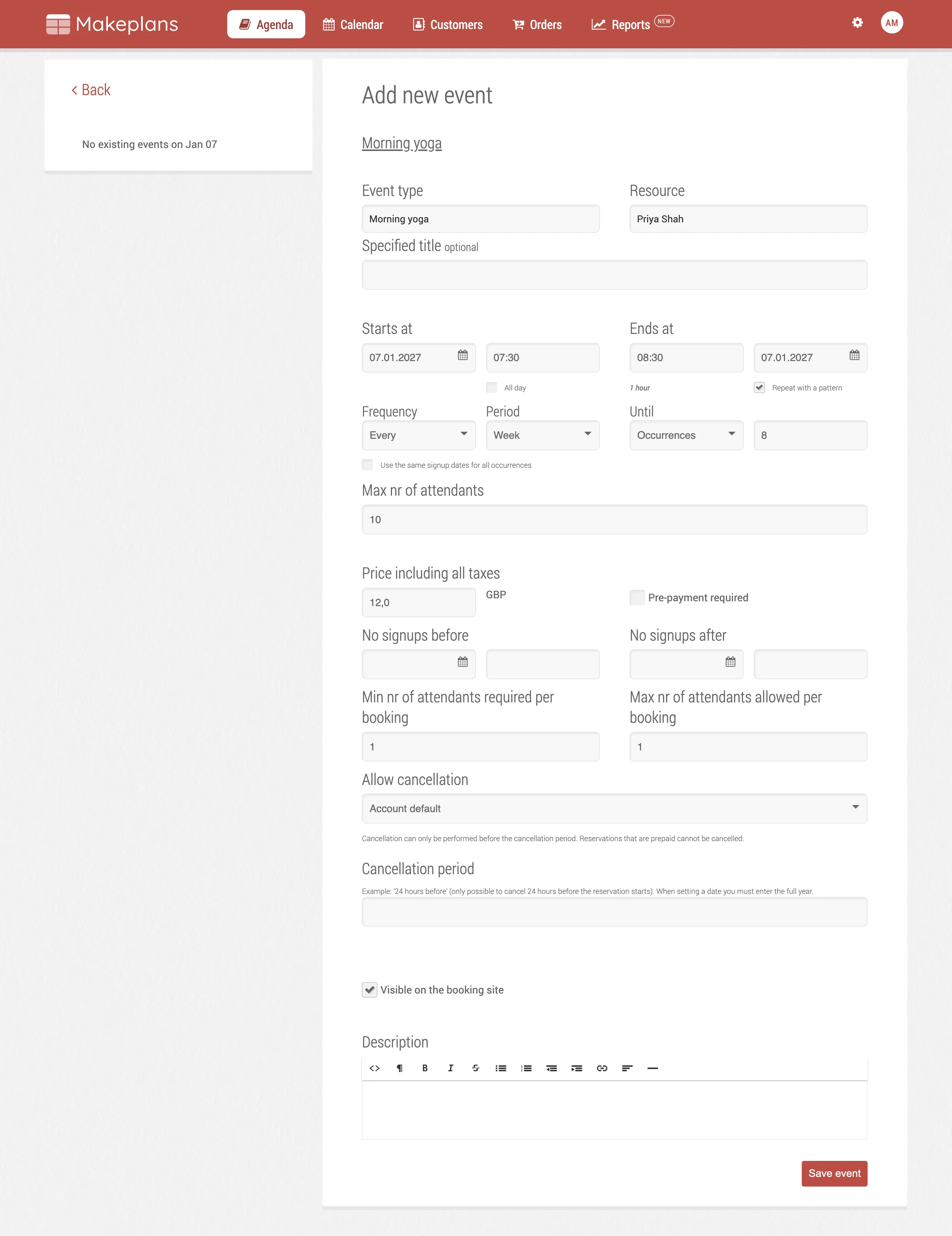
| Field | What it does |
|---|---|
| Specified title | An optional title for this event only. Without it, the event uses the title of the event type. |
| All day | The event has no start and end time. |
| Repeat with a pattern | Creates a series of events. See below. |
| Max nr of attendants | When this number is reached, the event is full. |
| Price including all taxes | The price per person. Leave empty for a free event. |
| Pre-payment required | Attendants must pay online to sign up. |
| No signups before / No signups after | The period customers can sign up in. |
| Min / Max nr of attendants per booking | How many people one customer can sign up at once. |
| Allow cancellation and Cancellation period | Override the account’s cancellation rules for this event. |
| Visible on the booking site | Clear this to keep the event out of the booking site. |
| Description | Text shown to customers for this event. |
A class that repeats
- In the event form, tick Repeat with a pattern.
- Choose Frequency and Period, for example Every Week.
- Under Until, choose Occurrences and enter how many, or Before date and enter the last date.
- Select Save event.
MakePlans creates the events in the background. Two things to know:
- Set the repetition when you create the event. You cannot make an existing event repeat later, and you cannot change the pattern afterwards. You can edit or delete each event in the series.
- Customers sign up for each event separately. One reservation cannot cover every event in the series.
To see the whole series, open one of the events and select This event is part of a repeating pattern. From there you can also delete all of them.
A course booked as one unit
For a course over several weeks where attendants sign up once for everything, create one event. Set Starts at to the first day and Ends at to the last. The customer makes one reservation. The sessions cannot then be managed one by one, because it is a single event.
Free events
Leave the price empty. Do not enter 0. No price is shown on the booking site.
Several people in one reservation
When a customer signs up more than one person, the price is multiplied by the number of people. Three people at a price of 200 pay 600.
Different prices for adults, children or members
An event has one price. For several price groups you have two options:
- Create one event type per group, such as “Course - adult” and “Course - child”, each with its own price. MakePlans cannot check who belongs to which group. If the groups share the same places, you have to watch the total yourself.
- Give the lower price through a coupon code that members enter when they pay.
If the price is the same and you only want to know which group someone is in, add a field to the reservation form instead. See Custom fields.
When customers can sign up
The default signup period for new events is set under Booking site, then Rules, in Do not allow event signups until and Do not allow event signups after. Both are relative to the start of the event, such as 2 weeks before. See Limit how far ahead customers can book.