
Customers
Everyone who books gets a customer profile. Open Customers in the main menu to see the list. Use Search to find a customer.
The customer page
Select a customer to see their contact details, when they registered and all their reservations.
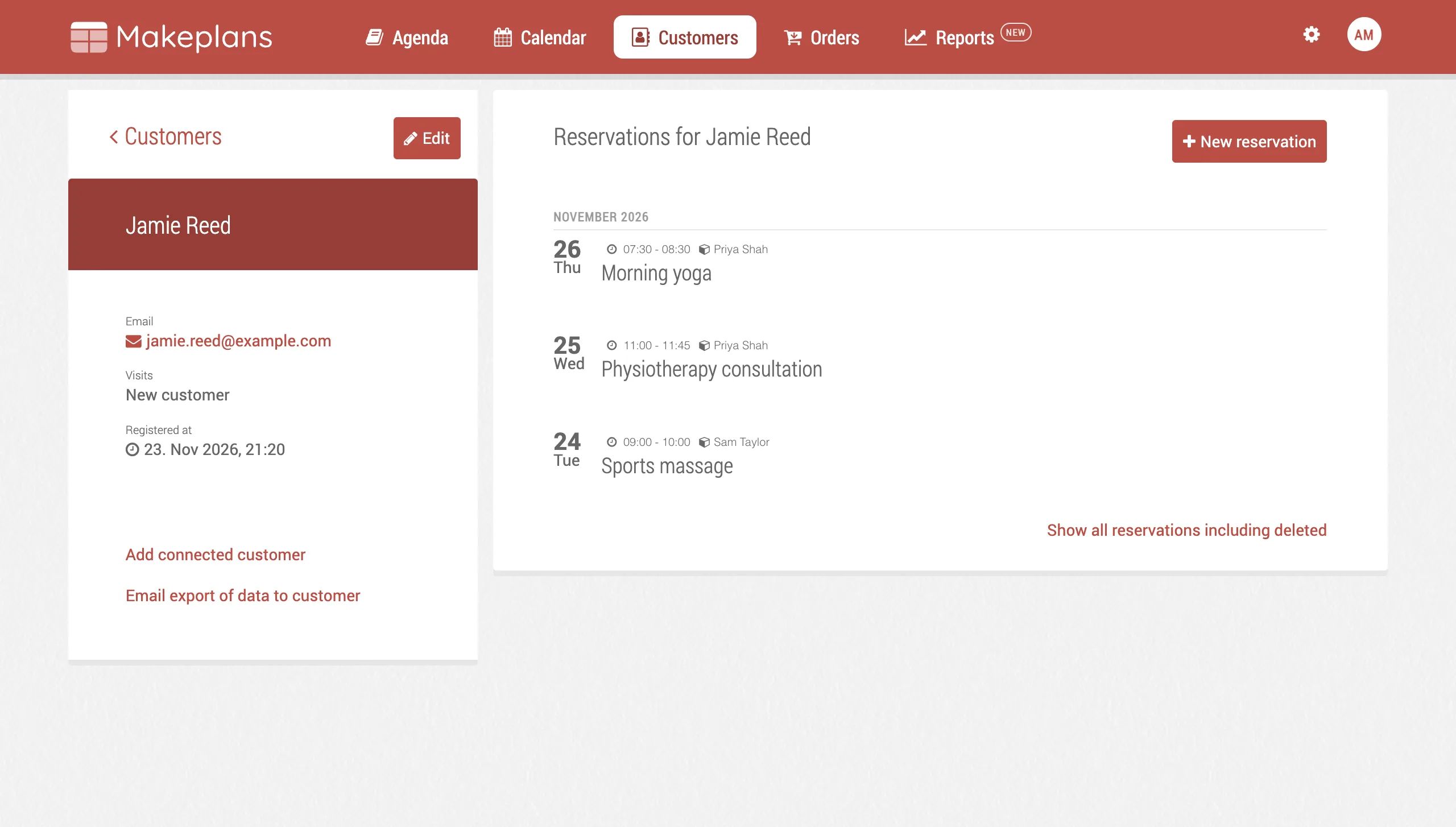
| Action | What it does |
|---|---|
| Edit | Change name, email, phone number, address, date of birth and notes. |
| New reservation | Add a reservation for this customer. |
| Add connected customer | Add a person this customer can book for, such as a child. |
| Email export of data to customer | Sends the customer a copy of the data you hold about them. |
| Show all reservations including deleted | Also lists cancelled reservations. |
Add a customer
Select New customer, fill in the name and contact details, and select Save customer. Customers are also created automatically when someone books on the booking site, and when you type a new name in the reservation form.
Phone numbers are checked. A number without country code is read as a number in your account’s country.
How customers are matched when they book
Email and phone number identify a customer. Each can belong to one customer profile only.
When someone books, MakePlans looks up the profile with that email or phone number and uses the details stored on it. A booking does not overwrite the profile. So if the stored email is old or misspelled, confirmations keep going to that address, whatever the customer types when booking. The fix is to correct the profile: open the customer, select Edit and save the right details.
“Email or phone number already in use”
This message means another profile already has that email or phone number. Search for the email or number to find it.
The other profile may have been deleted. Deleted customers are not shown in the normal list. If you create a customer with the email or phone number of a deleted one, the old profile is restored with the new details.
Merge duplicates
If the same person has two profiles:
- Open one of them and select Edit.
- Enter the phone number or email of the other profile and select Save customer.
- MakePlans sees the conflict and offers to merge. Tick Merge these two customers and save again.
The reservations are moved to the profile that is kept.
People who share a phone number or email
Two customers cannot have the same phone number or email. This matters for families: if a parent books for a child with the parent’s own number, the reservation ends up under the parent’s name.
Instead, let the parent book for the child as a connected customer. On the booking site, a logged-in customer selects Book for someone else before completing the booking. This creates a separate profile for the child, linked to the parent. You can do the same in the admin with Add connected customer.
“The values do not match your profile”
A customer sees this warning on the booking site when the email or phone number matches a profile but something else, usually the name, does not. Common reasons:
- They are booking for someone else. They should use Book for someone else.
- They wrote their name differently from the profile, for example only a first name or a new surname.
- They have changed email or phone number since the profile was created.
The customer can choose to continue anyway. To stop the warning coming back, correct the profile in the admin. Customers cannot have their profile edited by MakePlans support. It has to be done by you.
Delete a customer
Open the customer, select Edit, then Delete.