How to book for other people
Your customer profile is linked to your email address, phone number and national id number. So you cannot login with your email address and enter someone else's name in the form directly. To book for another person you must first login as normal then proceed by adding another person to your profile. The booking will then be saved to that person instead of yours. You can then later choose which person you want to make a booking form among all the other people saved to your profile.
-
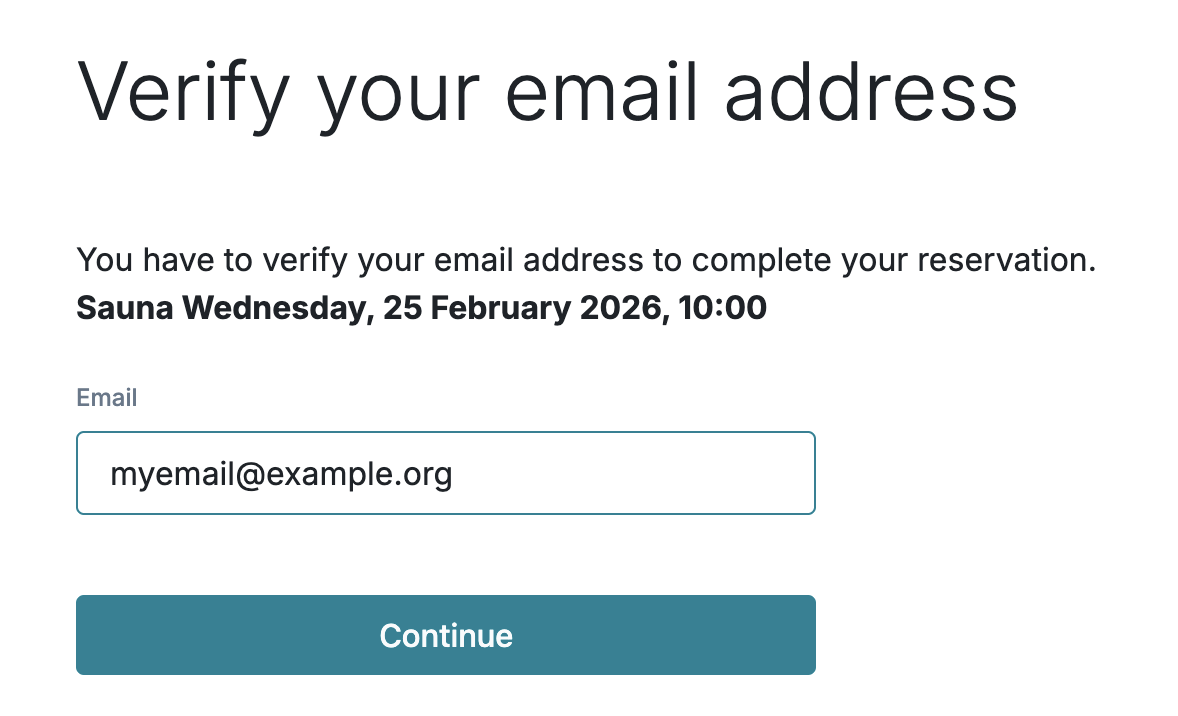
Login or proceed with booking as normal with your email address.
-
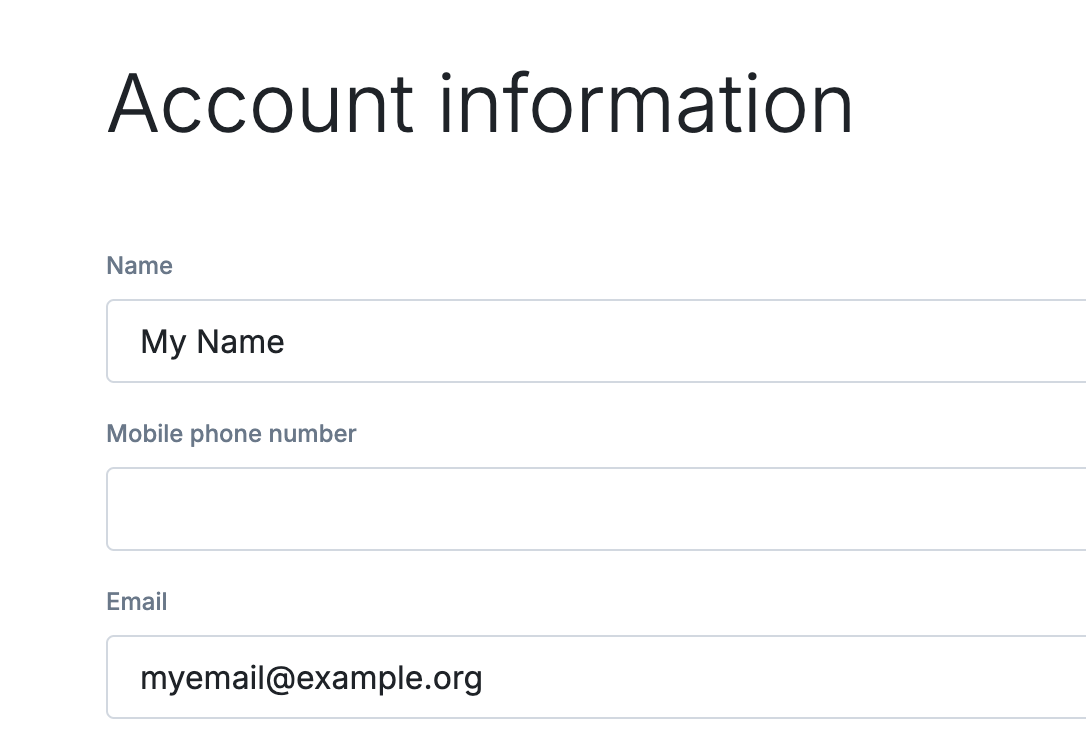
If this is your first time making a booking you must complete your customer profile. Use your name, email address and phone number.
-
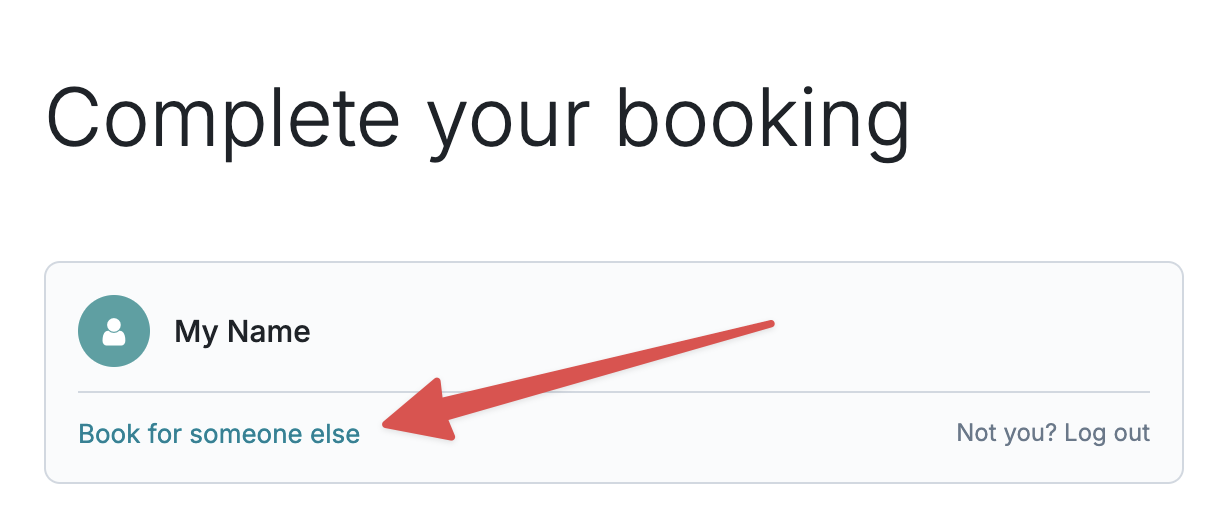
In the booking form click the "Book for someone else" link.
-
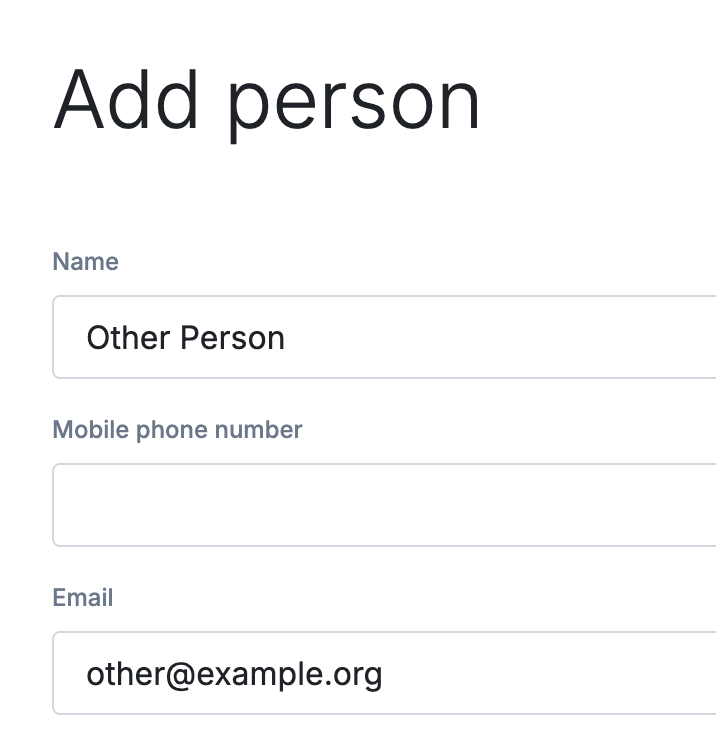
You will now be presented with a new customer profile form for the other person. Set the name, email address and phone number of that other person. Click save.
-
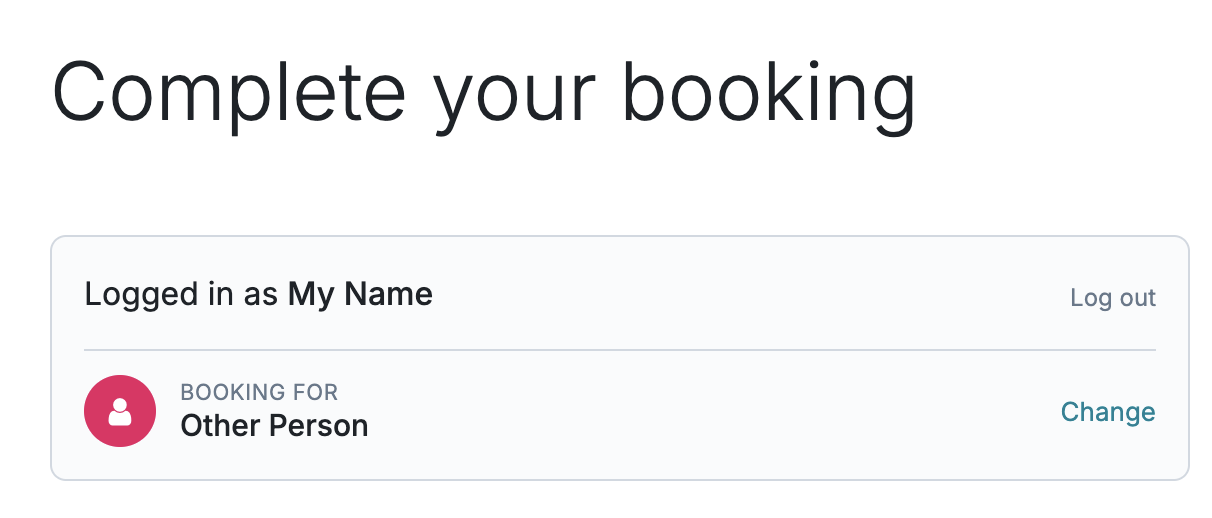
The booking form should now show that you are booking for the other person. Proceed with the booking.
-
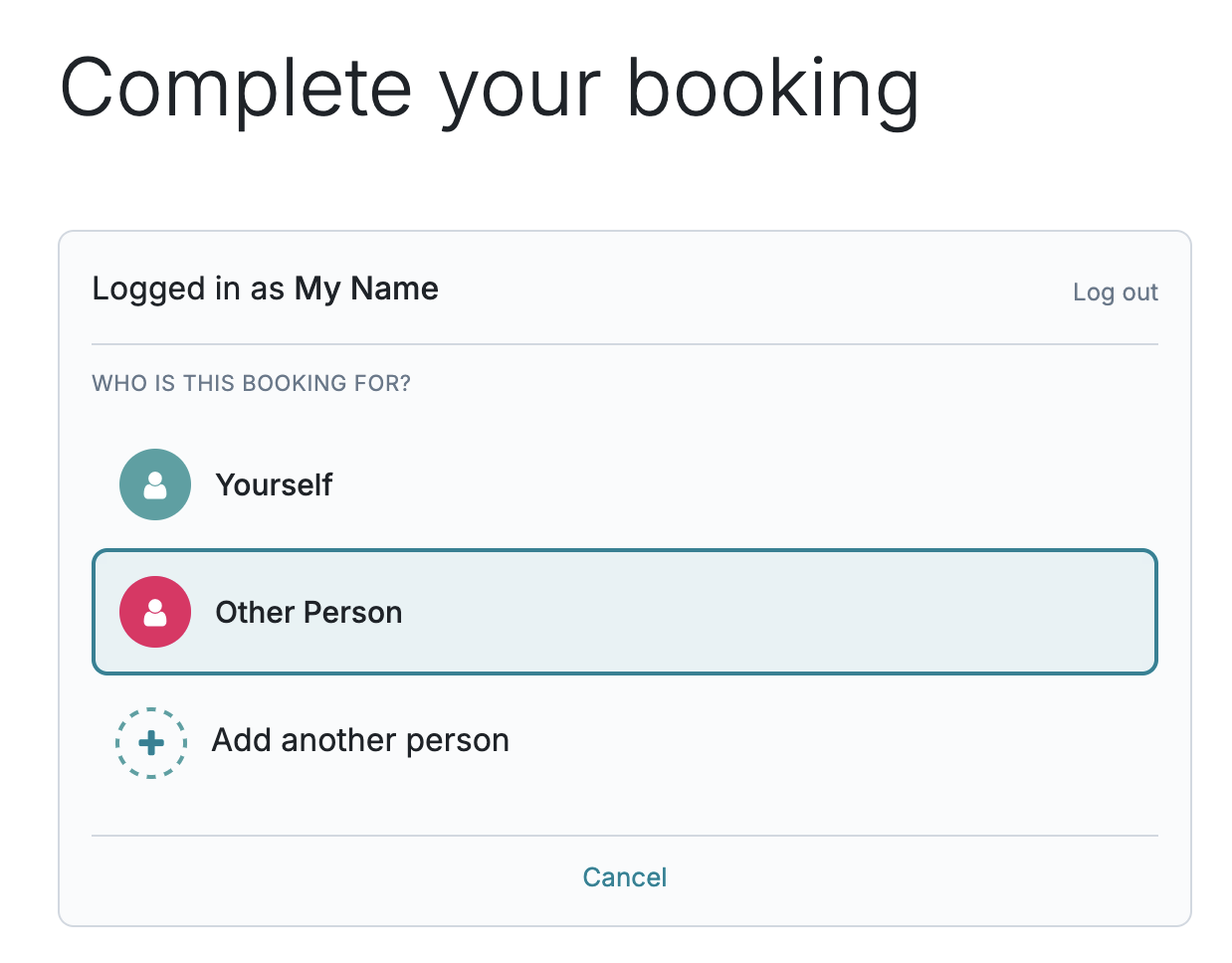
If you are returning to make a new booking you can now choose which person to book for by clicking the "Change" link in the previous screenshot. You will be presented with a list of customer profiles linked to your account and you can select among them. You can also add additional customer profiles by clicking "Add another person".